
Change Your Settings
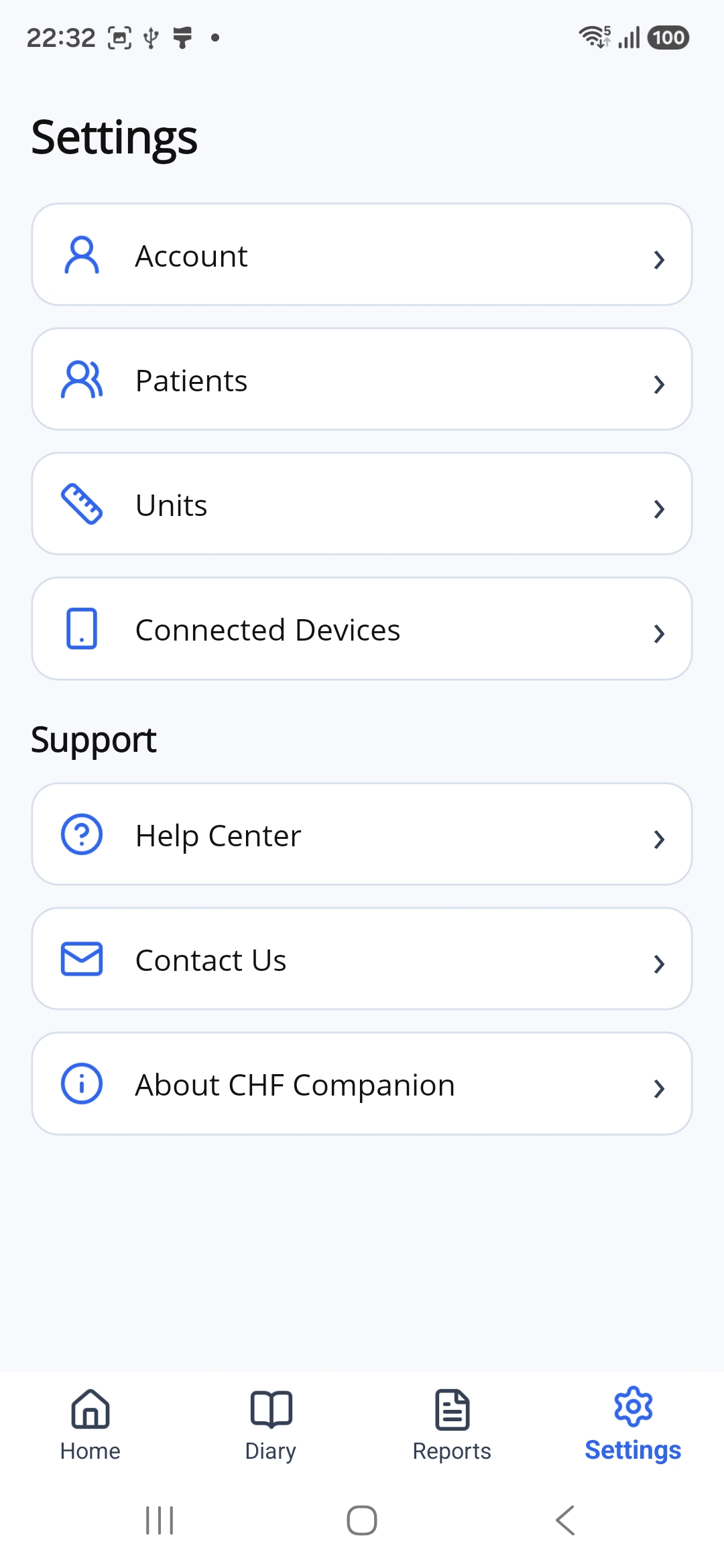
In Settings, you can choose your weight unit, view patient profiles and manage your account.
Tap or click a picture to enlarge it. To close the picture, tap the × button or press Esc.
Open Settings
Tap Settings at the bottom of the app.
Choose Your Weight Unit
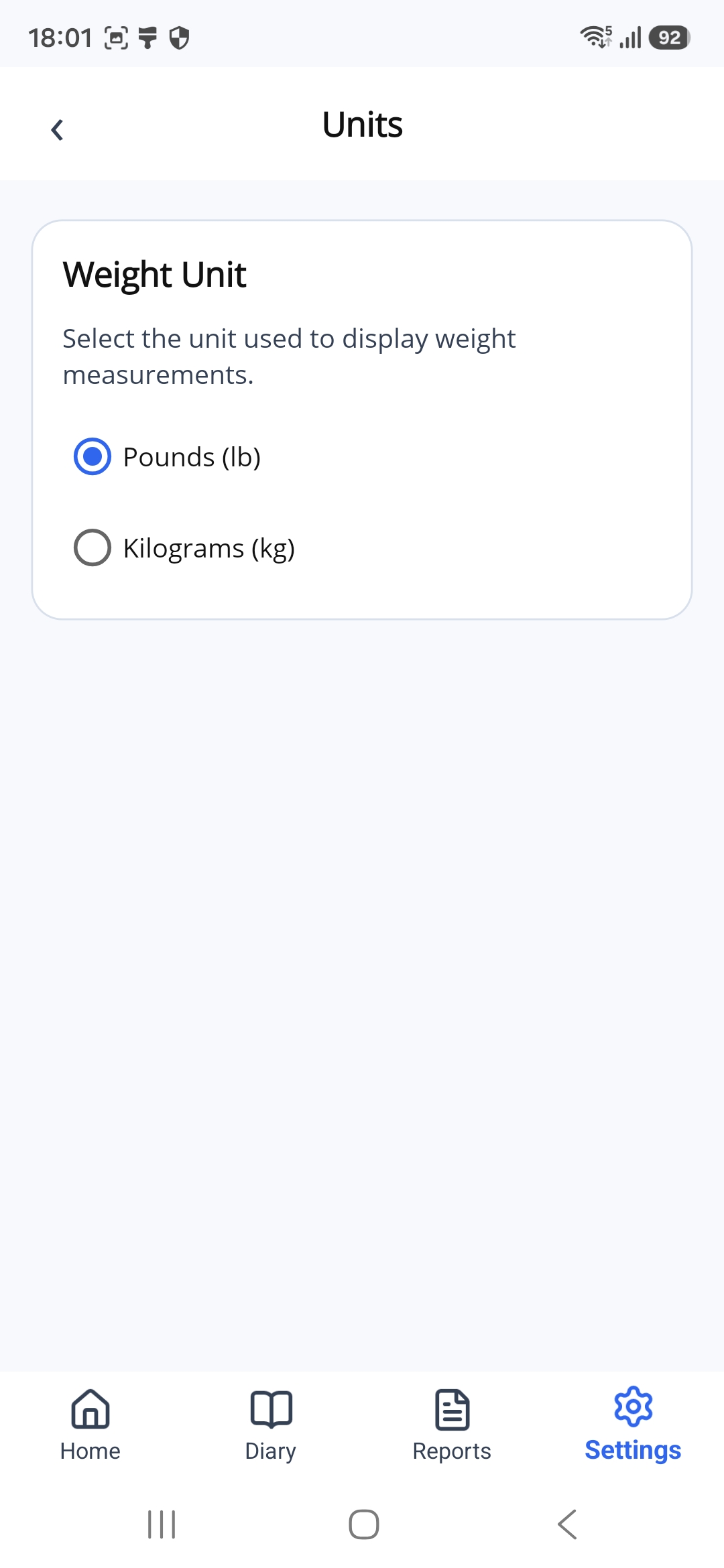
- On the Settings page, tap Units.
- Tap Pounds (lb) or Kilograms (kg). The blue circle shows your selected unit.
- Tap the back arrow at the top left to return to Settings.
View Patient Profiles
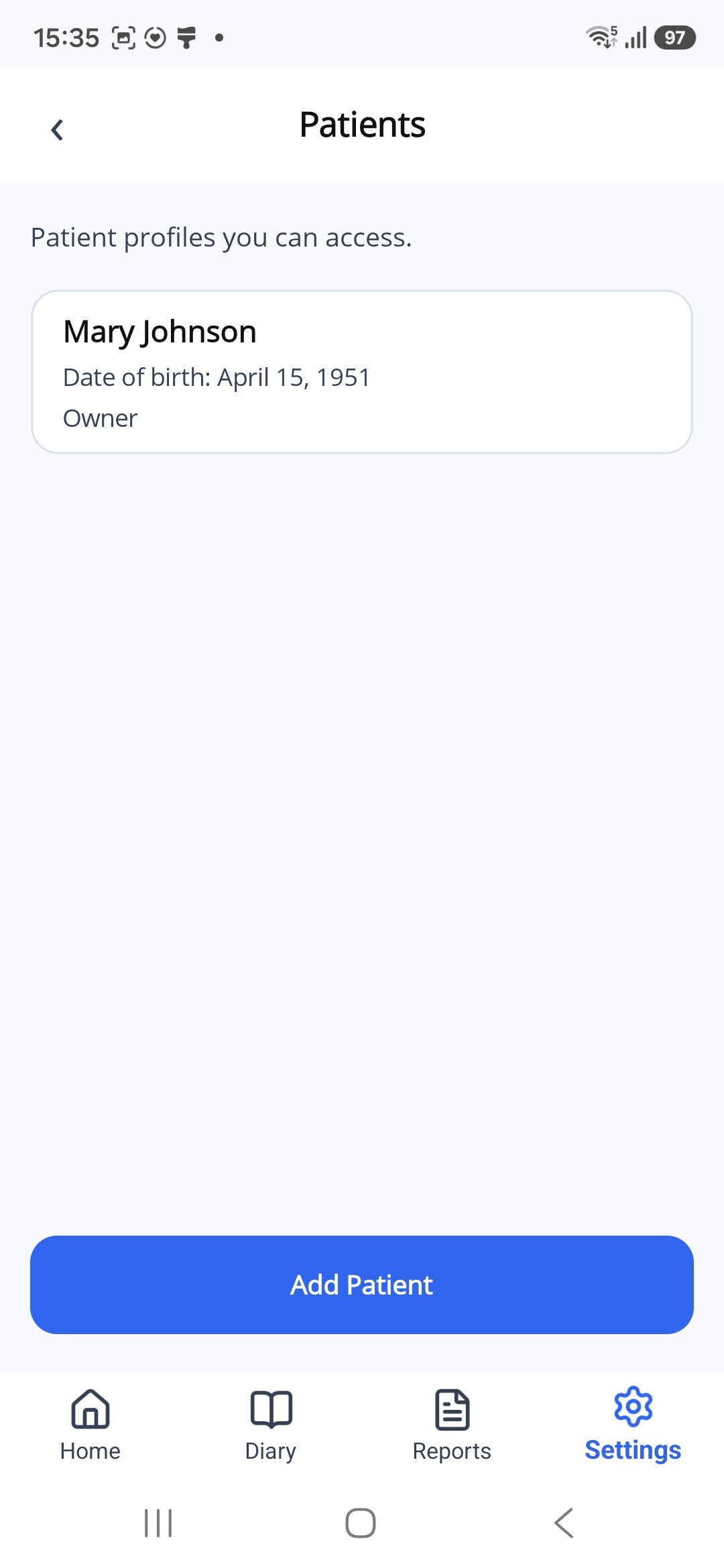
On the Settings page, tap Patients.
This page shows the patient profiles you can access. Each card shows the person's name, date of birth and your role.
Add a Patient
To add another person whose measurements you want to follow:
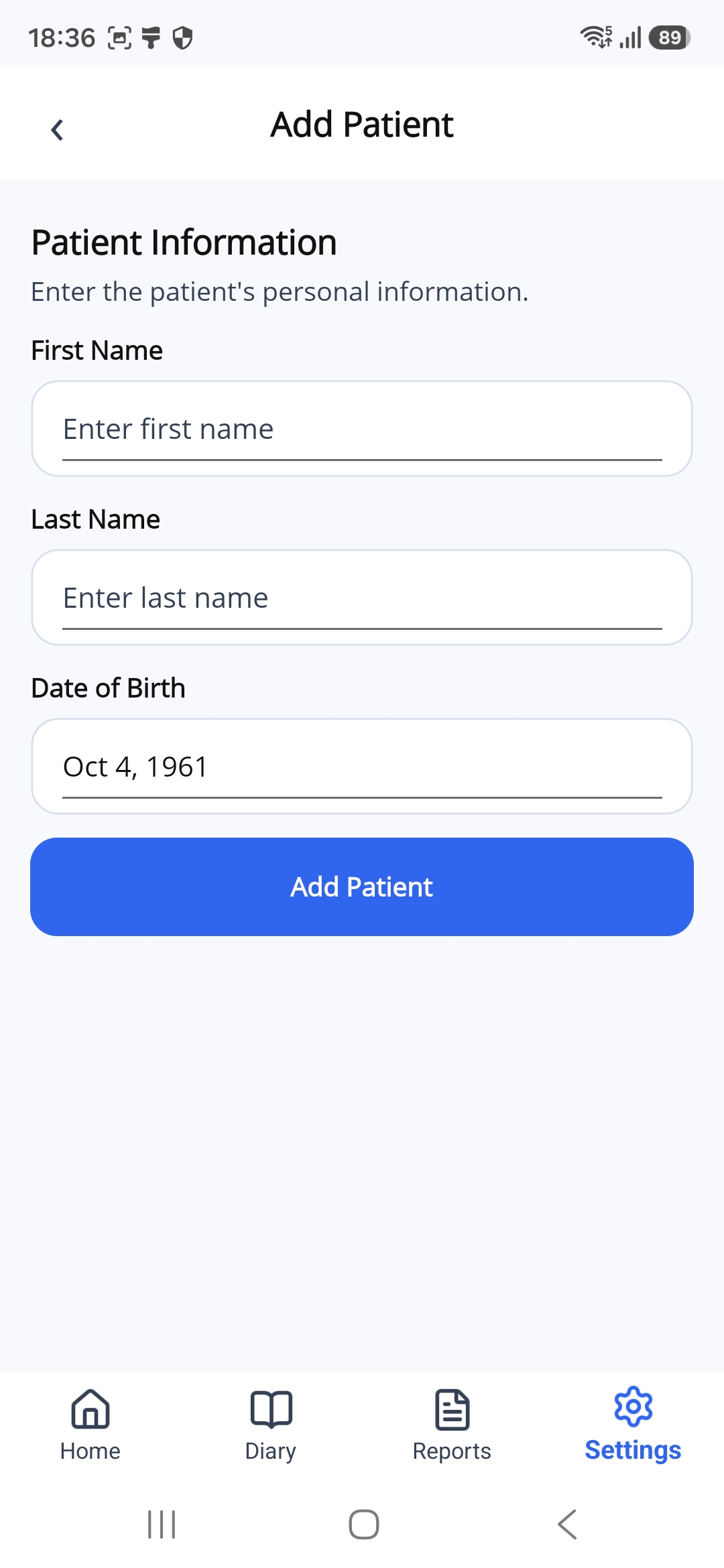
- On the Patients page, tap Add Patient.
- Enter the person's First Name and Last Name.
- Set Date of Birth to the person's correct date of birth.
- Check the information, then tap Add Patient to save the profile.
Manage Your Account
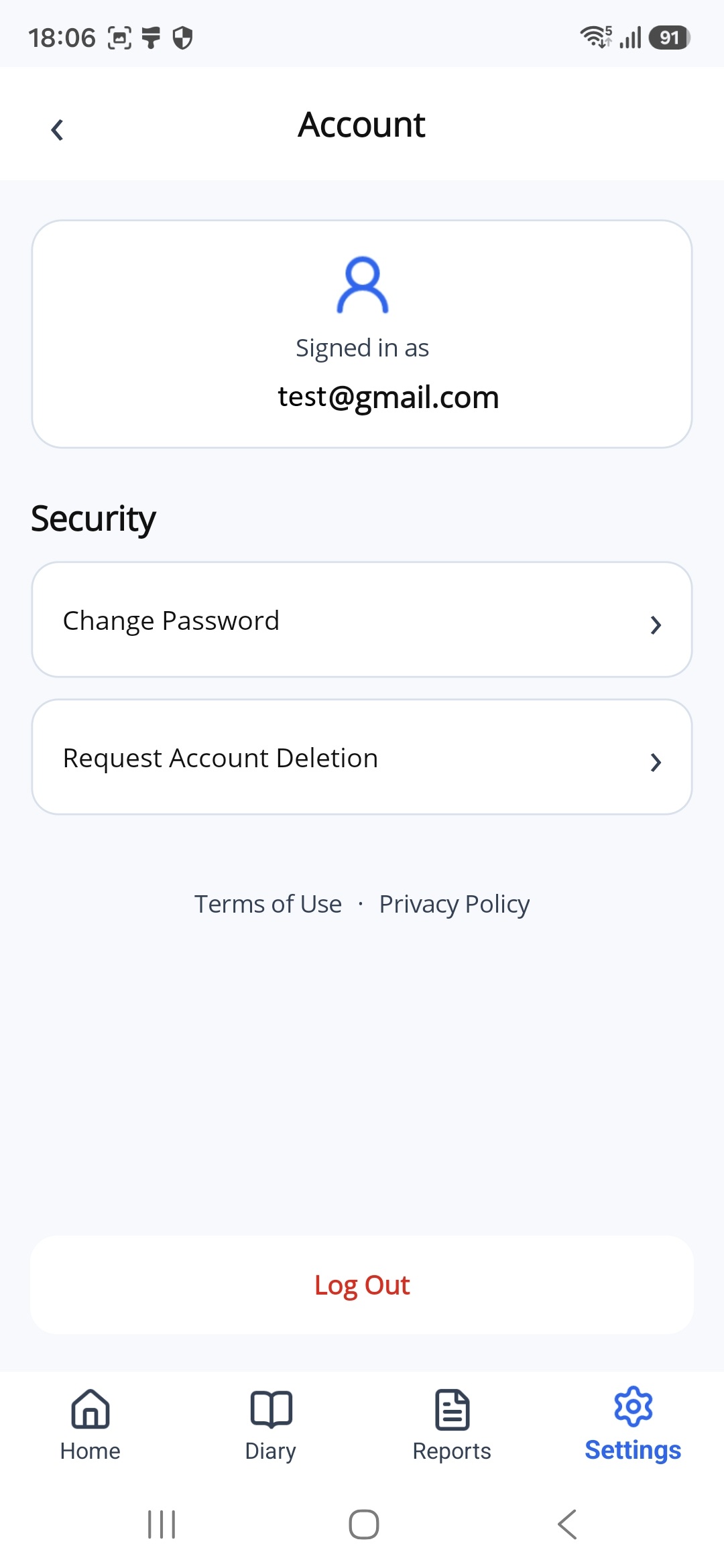
On the Settings page, tap Account. The email address for your account appears under Signed in as.
Change Your Password
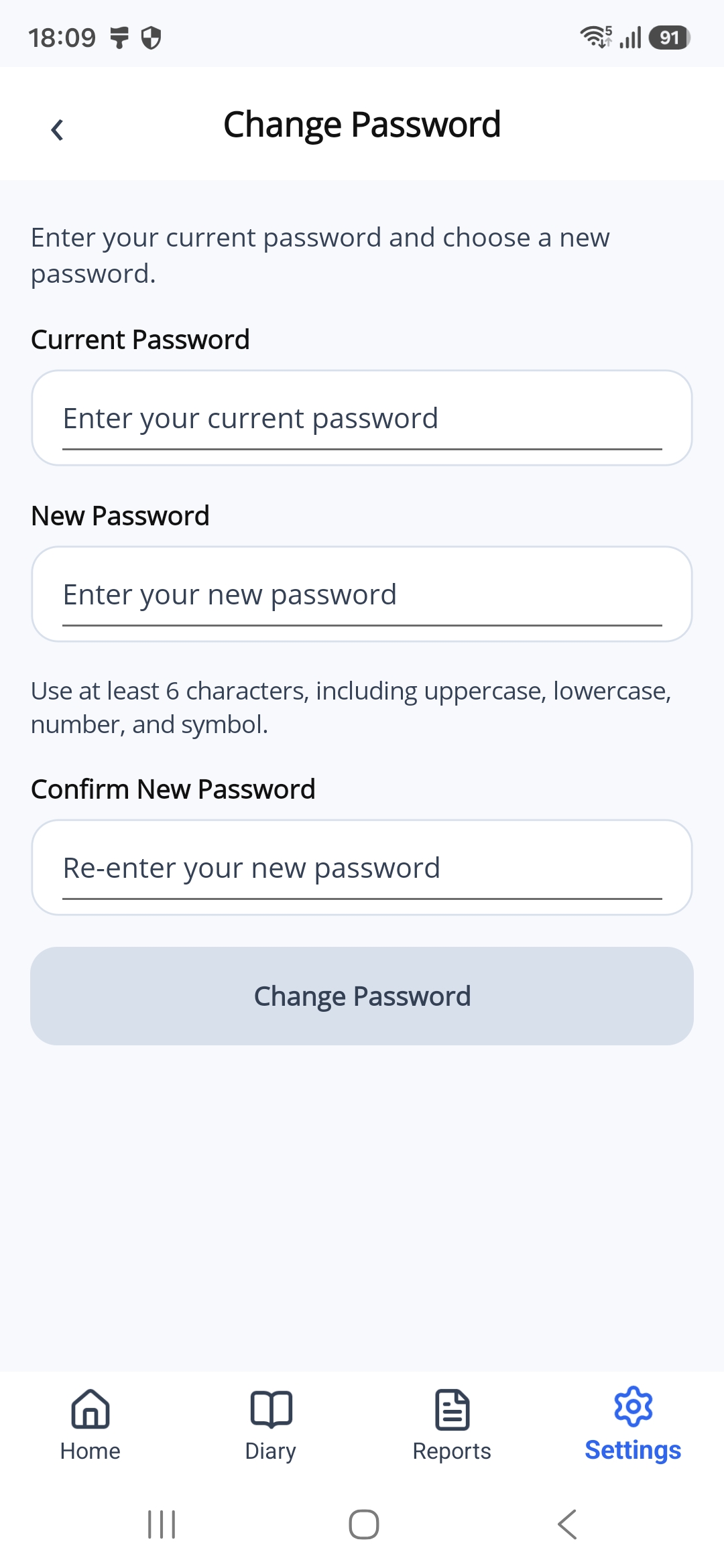
- On the Account page, tap Change Password.
- In Current Password, enter the password you use now.
- In New Password, enter your new password. Use at least 6 characters, including a capital letter, a small letter, a number and a symbol.
- In Confirm New Password, enter the same new password again.
- Tap the Change Password button.
Request Account Deletion
If you want to delete your account, follow these steps:
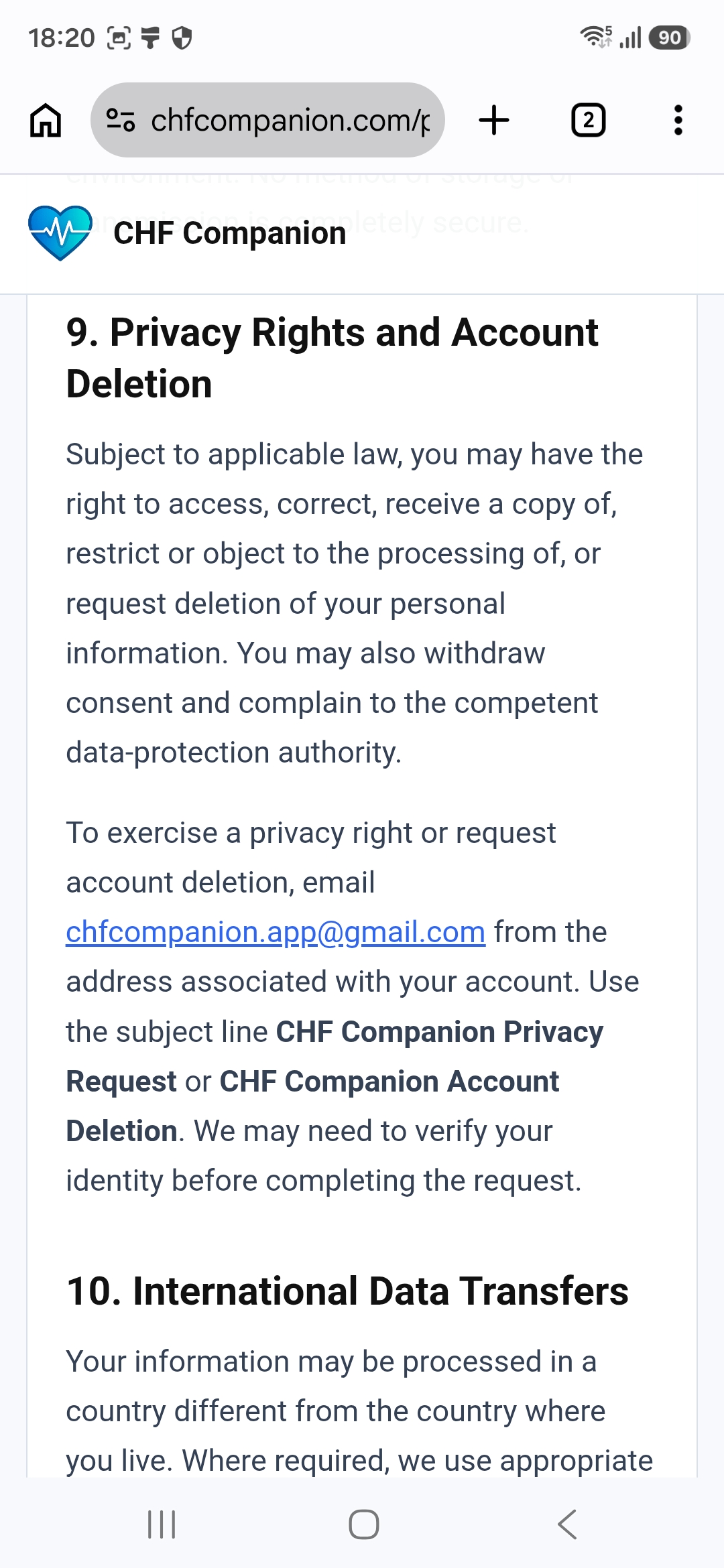
- On the Account page, tap Request Account Deletion. This opens the instructions on the project website.
- Send an email to chfcompanion@gmail.com . Send it from the email address used for your CHF Companion account.
- Use CHF Companion Account Deletion as the email subject. In the message, ask to have your account deleted.
You may be asked to confirm your identity before the request is completed.
Log Out
On the Account page, tap Log Out. You will need your email address and password to log in again.
Check Your Connected Devices
On the Settings page, tap Connected Devices to view your devices and measurement sources.
For the connection steps, see Connect Withings .
Find Help
The Settings page also includes Help Center, Contact Us and About CHF Companion. These options are explained in the next section.