
Create a Report
Use Reports to create a document with your measurements, charts, and diary notes. You can save it on your phone and send it to your doctor.
The report is saved as a PDF. This is a document file you can open on a phone or computer.
These pictures show how to save, open, and send a report on a Samsung Android phone.
Tap or click a picture to enlarge it. To close the picture, tap the × button or press Esc.
Create and Save a Report
Step 1. Open Reports
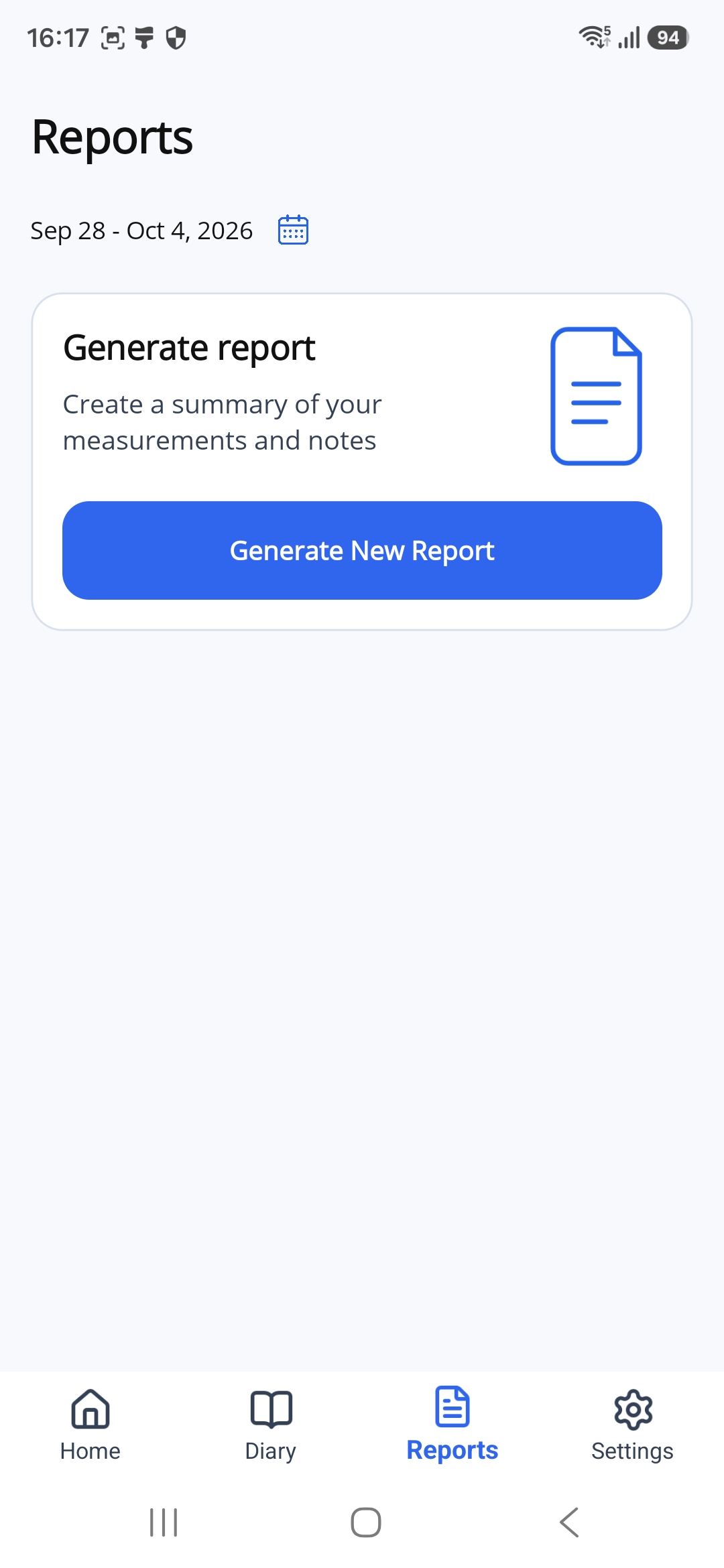
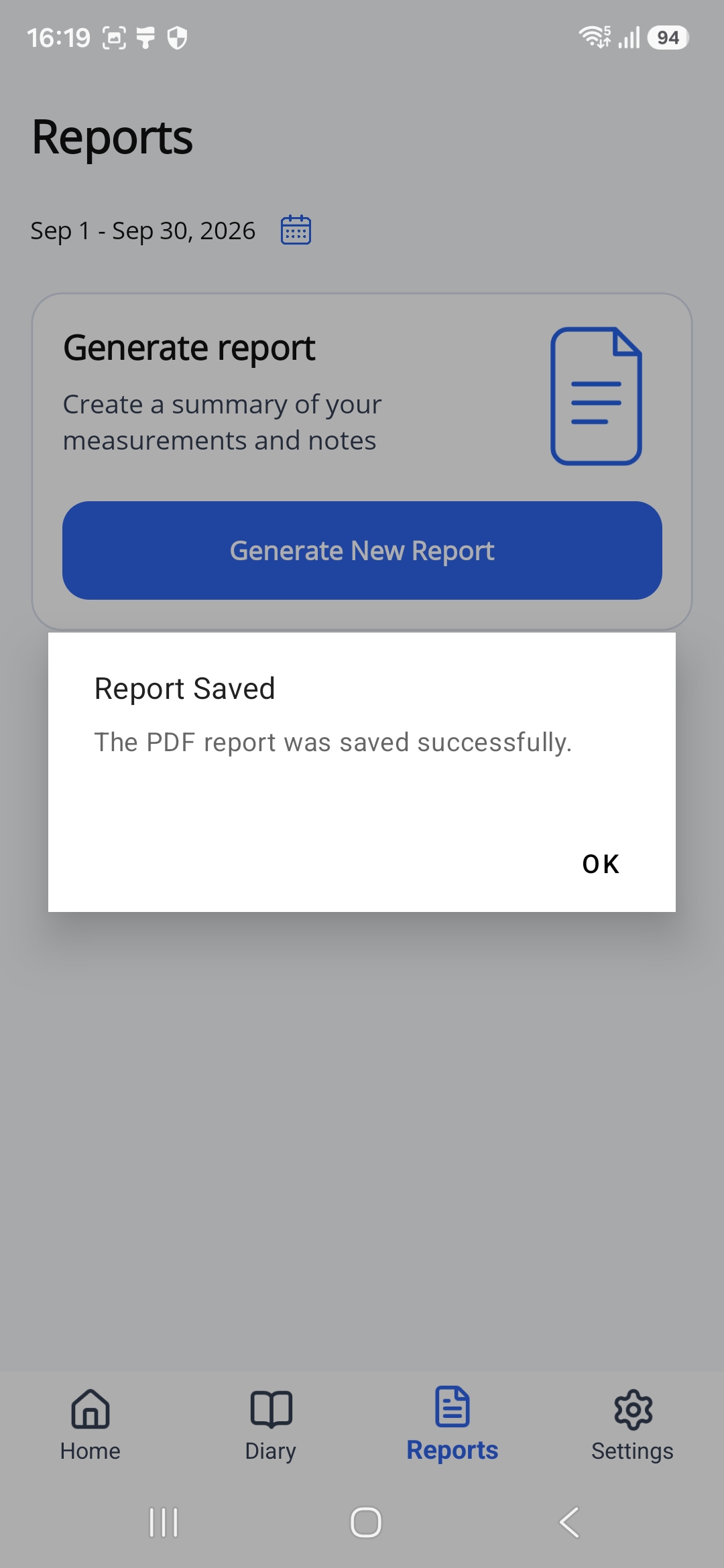
Tap Reports at the bottom of the app.
The dates at the top show the period that will be included in your report.
Step 2. Choose the Report Dates
To change the dates, tap the blue calendar icon.
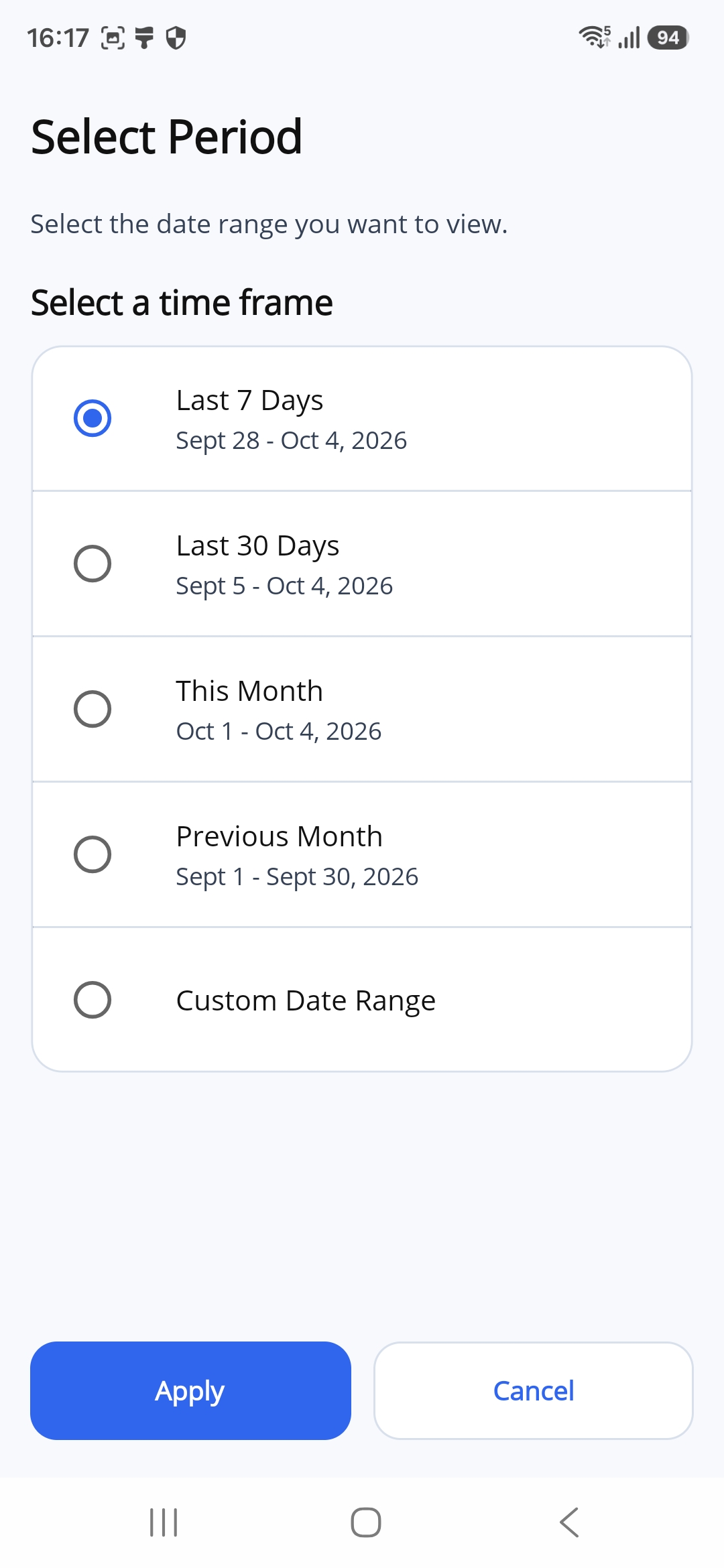
Choose the period you want:
- Last 7 Days
- Last 30 Days
- This Month
- Previous Month
Tap Apply to use that period.
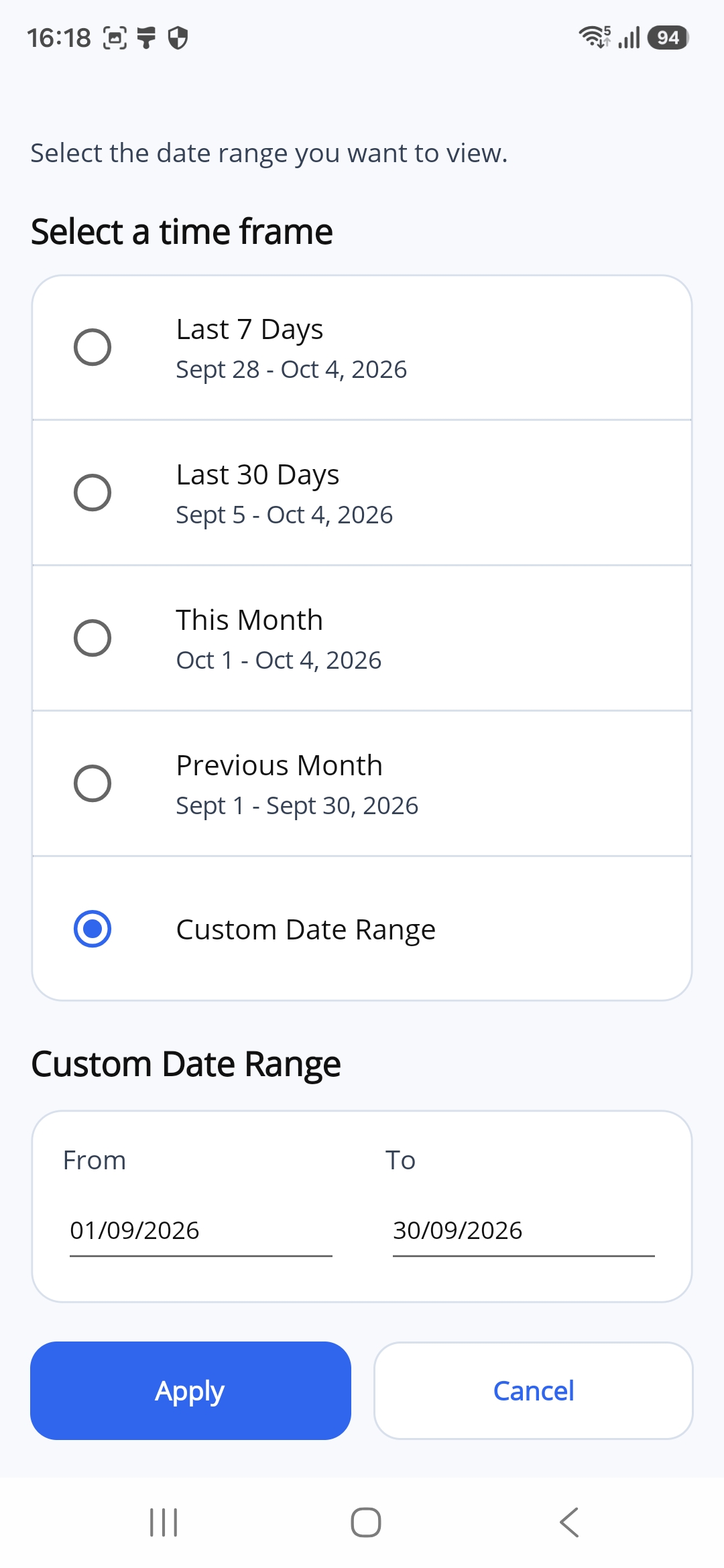
To choose your own dates:
- Tap Custom Date Range.
- Scroll down to the From and To fields, if needed.
- Tap the date under From and choose the first day of your period.
- Tap the date under To and choose the last day of your period.
- Check both dates, then tap Apply. Scroll down to the button if needed.
Tap Cancel if you want to return without changing the period.
Step 3. Generate the Report
Back on Reports, check the dates at the top.
Tap Generate New Report.
Wait while the app creates your PDF. Your phone will then ask where to save it.
Step 4. Save the PDF
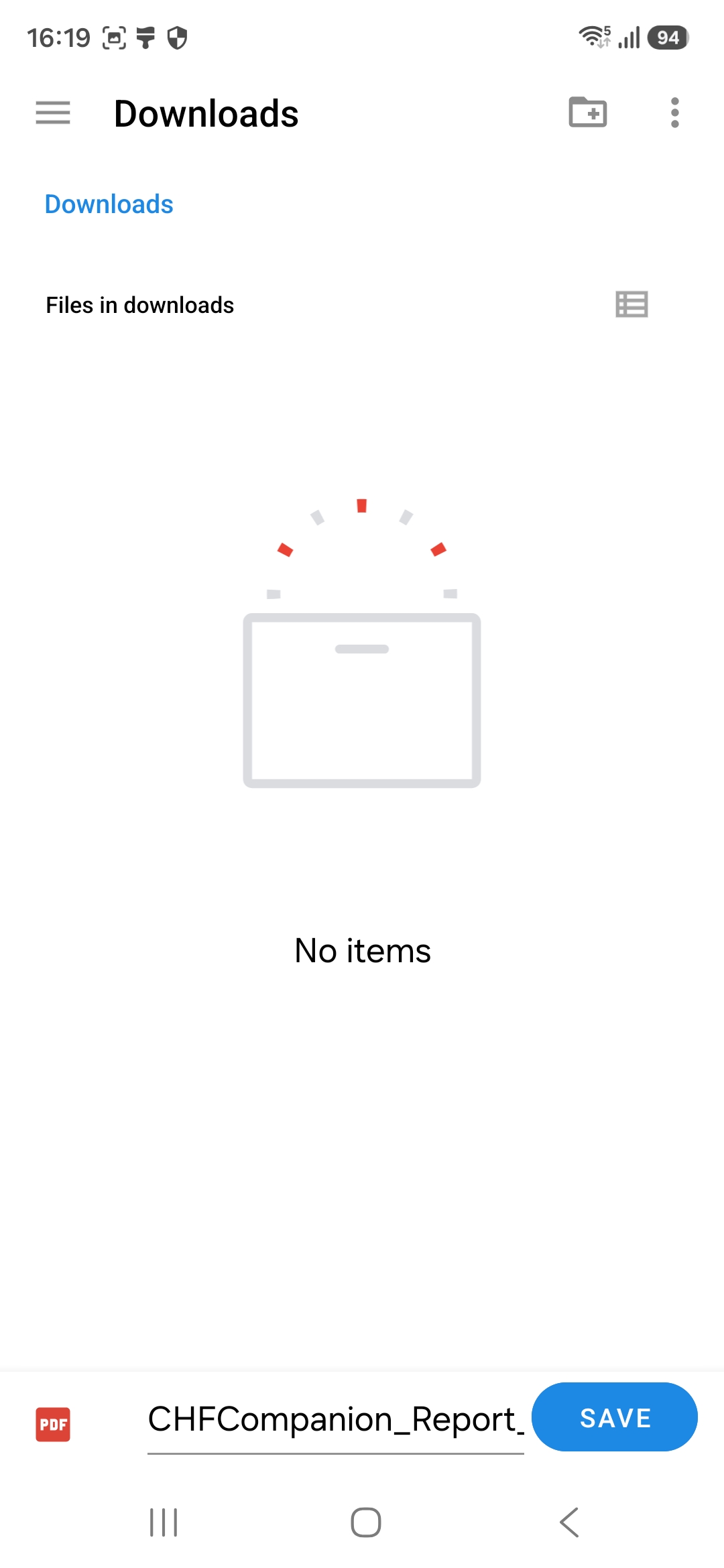
Choose the folder where you want to save the report. This example uses Downloads.
The filename is already filled in at the bottom of the screen.
Tap SAVE at the bottom right. If the folder list shows No items, you can still tap SAVE.
Step 5. Check the Confirmation
The message Report Saved confirms that your PDF was saved.
Tap OK.
Open and Read Your Report
Step 1. Find the Saved File
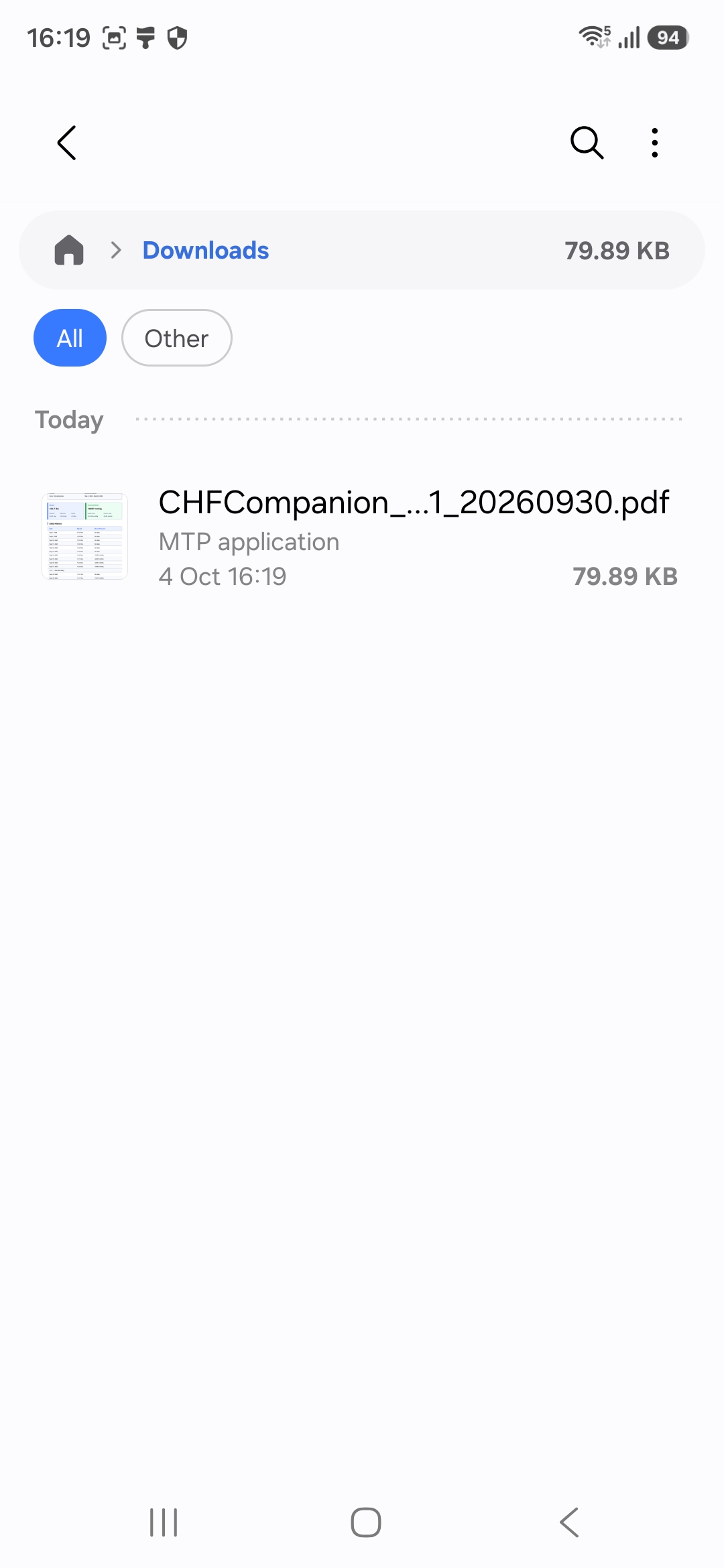
Open the My Files app on your phone.
Open Downloads, or the folder you chose when saving the report.
Find your PDF report. The suggested filename starts with CHFCompanion and ends with .pdf.
Step 2. Open the Report
Tap the PDF file to open it.
Check the patient name and Reporting Period at the top of the report.
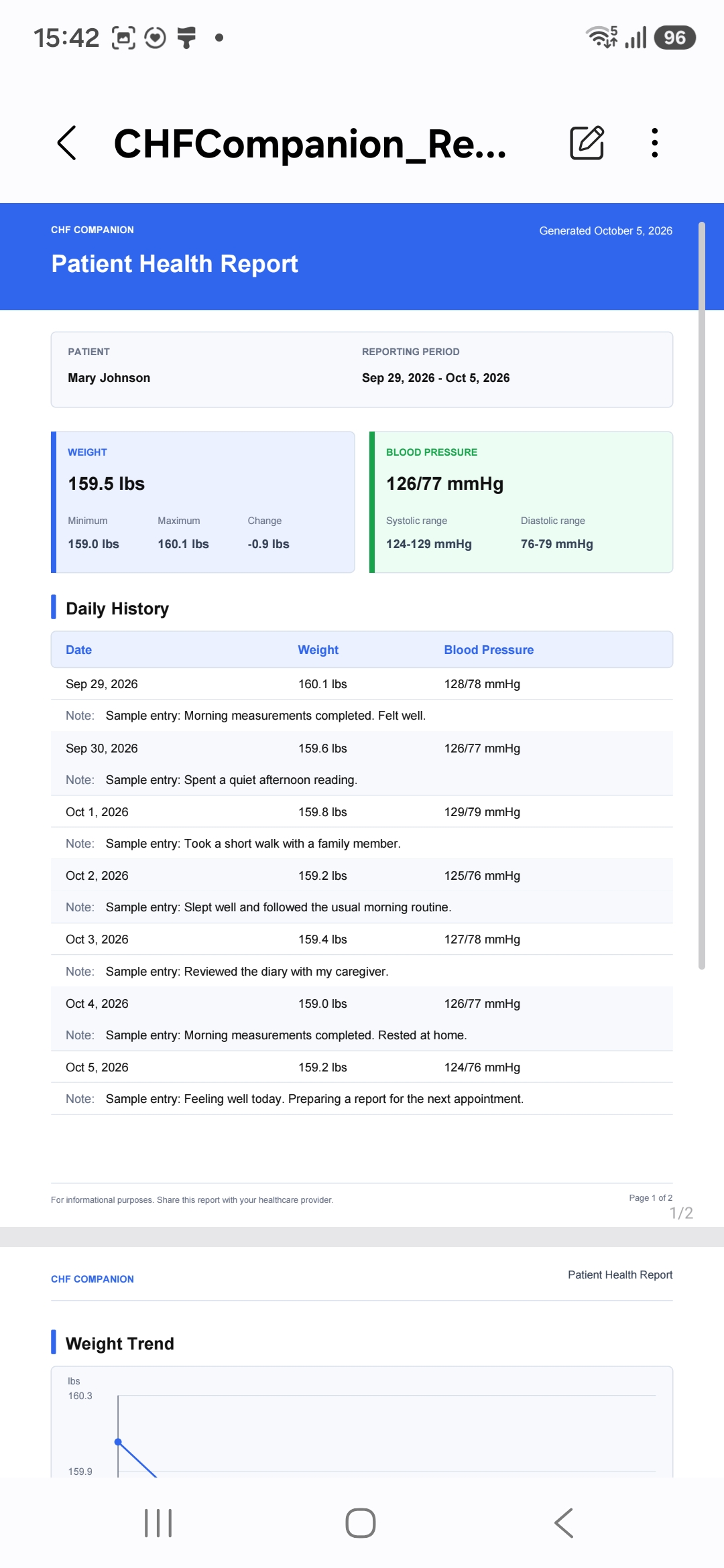
Swipe up to read the rest of the report. To make the text larger, place two fingers on the page and move them apart.
What the Report Shows
- The patient name and report dates.
- A summary of weight and blood pressure measurements.
- Daily History with measurements and saved diary notes.
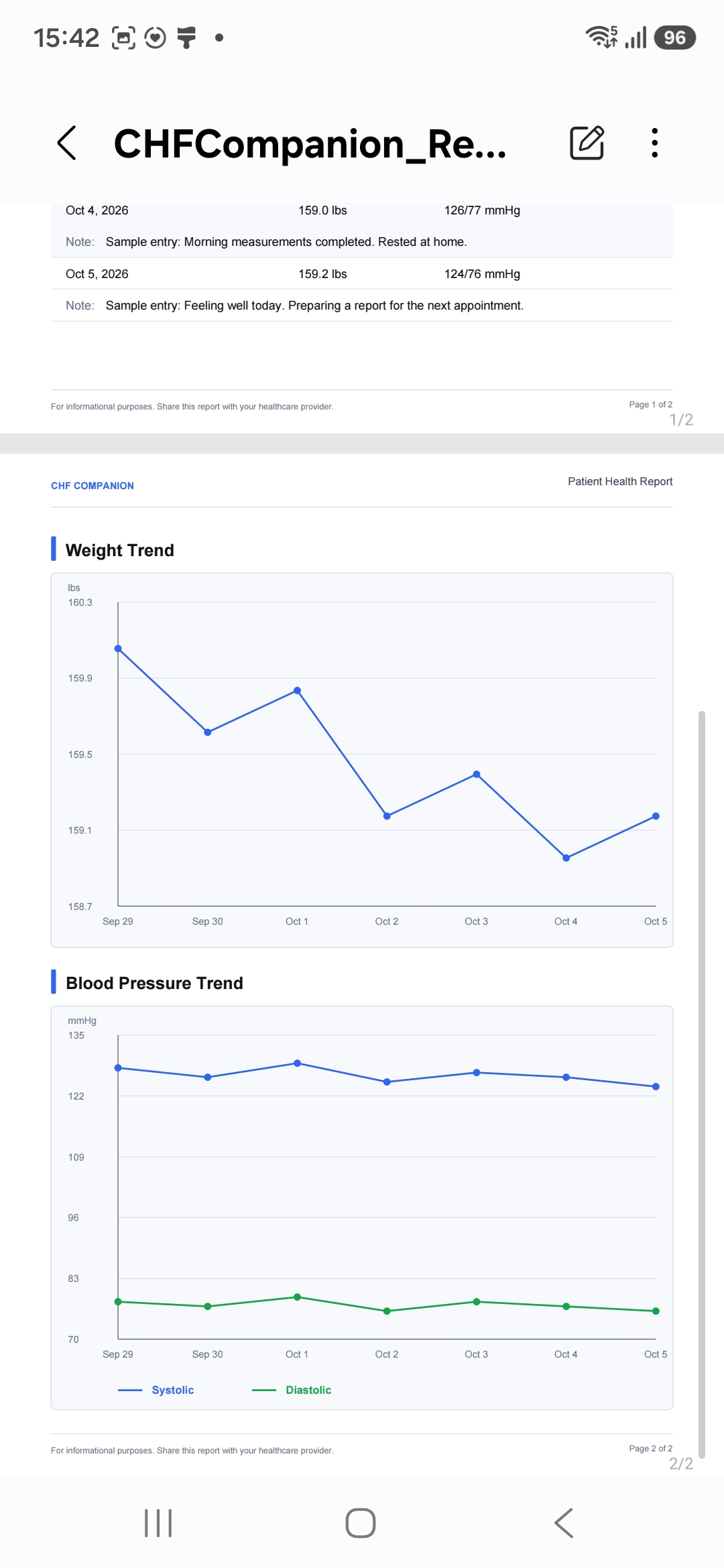
- Weight and blood pressure charts.
No data means a measurement is not available for that day.
The report can have several pages. Continue scrolling to see the charts.
Send Your Report by Email
Step 1. Open the Share Menu
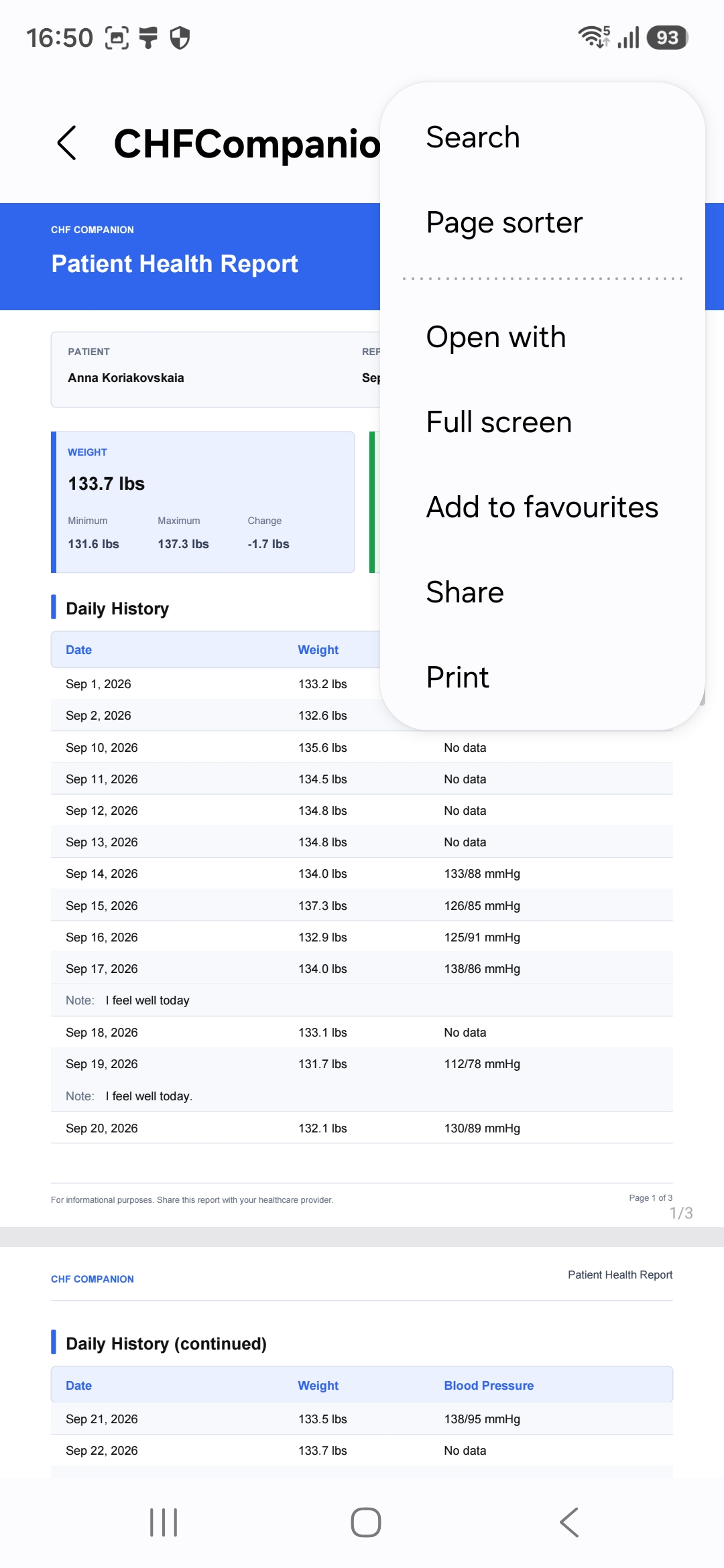
With the PDF open, tap the three dots at the top right.
Tap Share in the menu.
Step 2. Choose Your Email App
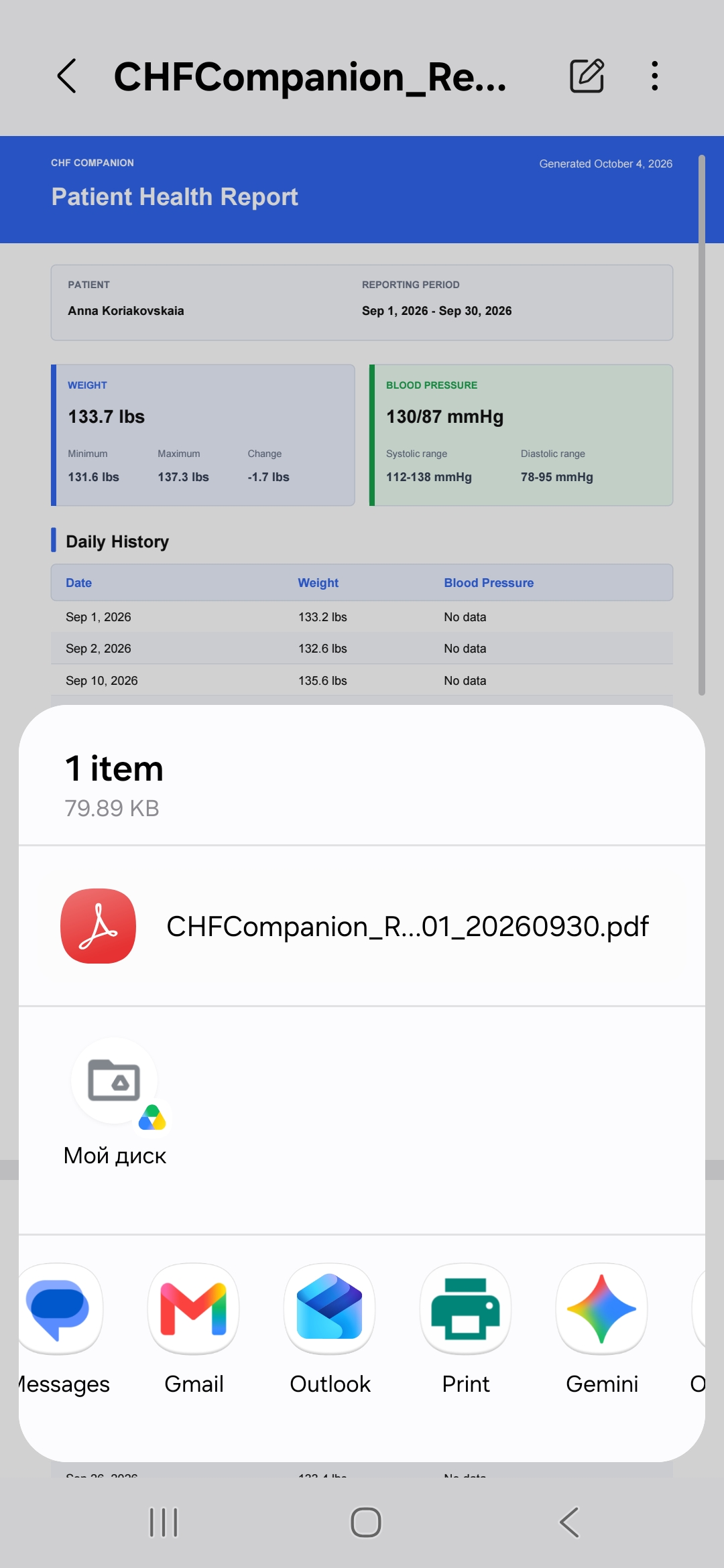
Tap the email app you use. This example uses Gmail.
Step 3. Prepare the Email
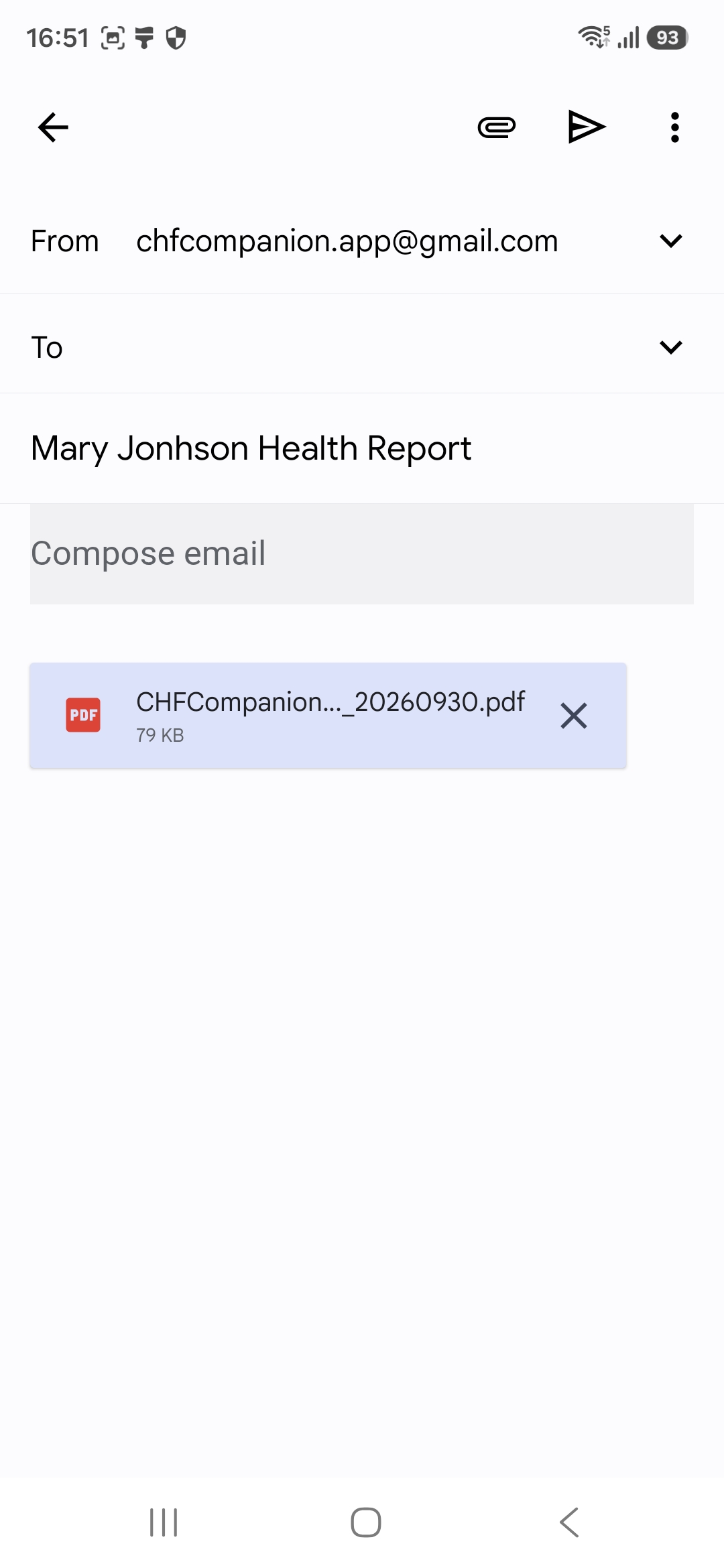
A new email will open with your PDF attached.
- In To, enter the recipient's email address, such as your doctor's address.
- Enter or check the subject line below To. You can use a title such as My health report.
- Tap Compose email if you want to add a short message.
- Check that the PDF is shown as an attachment.
Step 4. Send the Email
Check the recipient's email address.
Tap the Send icon at the top right. It looks like a paper plane.
If You Cannot Find the PDF
Open the same folder you selected on the save screen. In this example, it is Downloads.
Look for the filename you used when saving the report.
What Comes Next?
The next section explains how to change your settings, including your preferred weight unit.