
Use the Diary
Use the Diary to write notes about how you feel and anything you want to remember. You can read or change your notes later.
Tap or click a picture to enlarge it. To close the picture, tap the × button or press Esc.
Open the Diary
Tap Diary at the bottom of the app. The My Diary page will open.
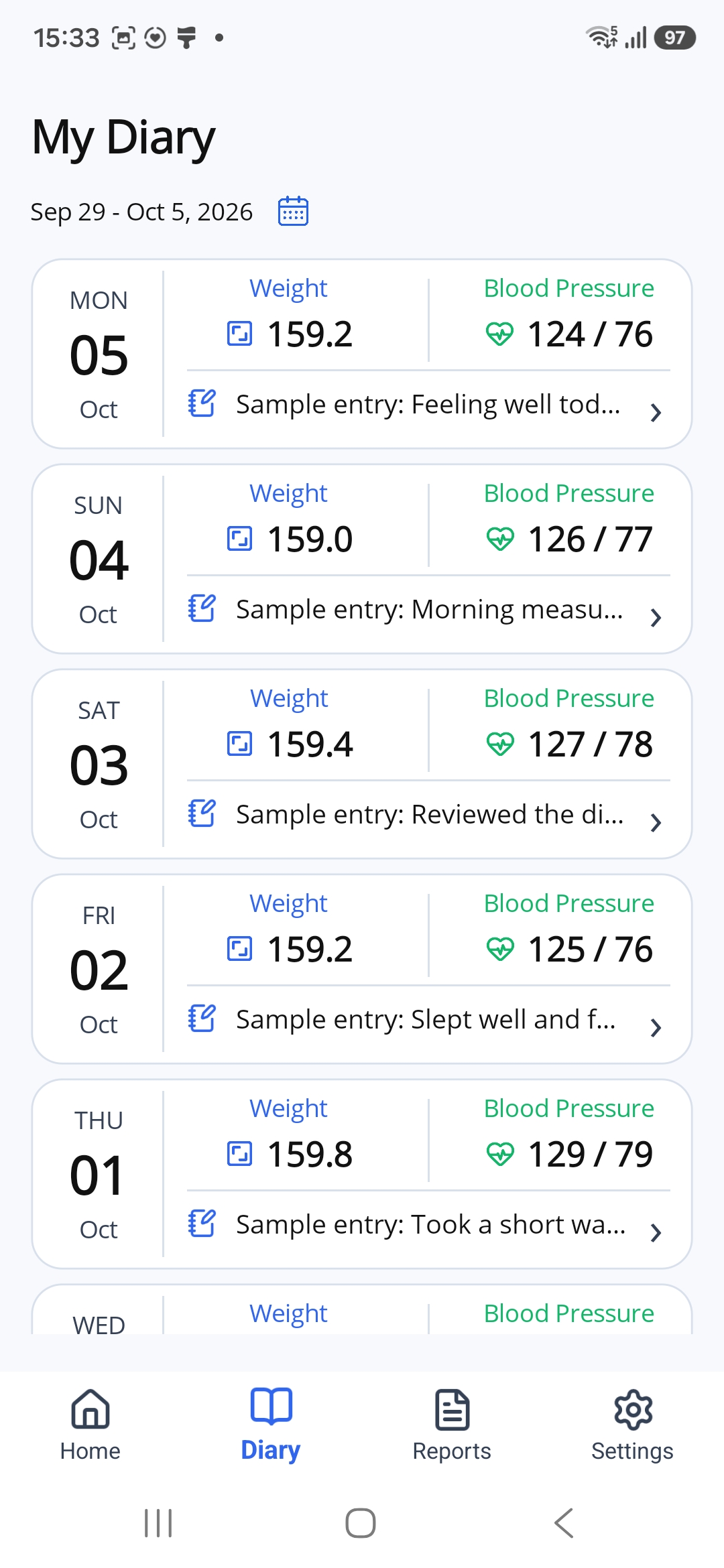
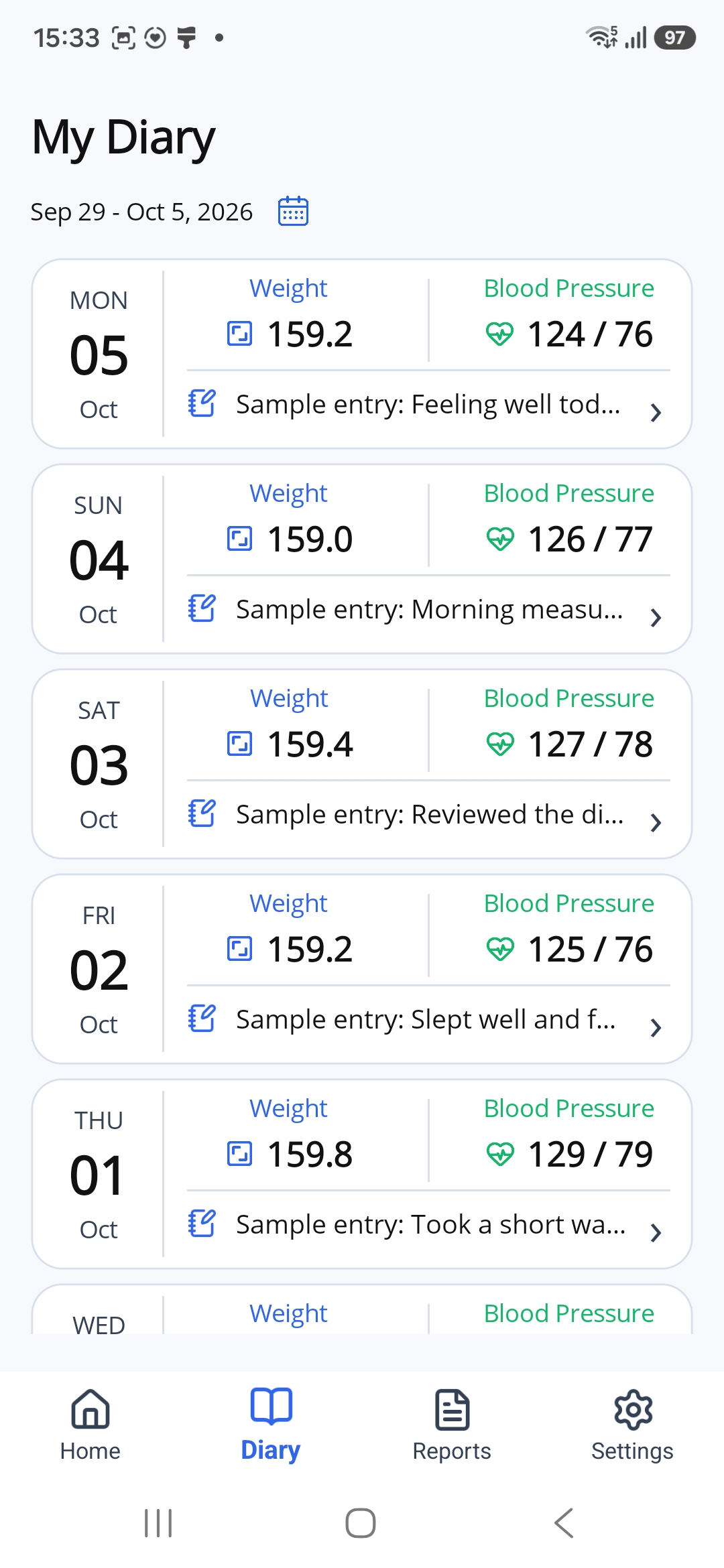
The dates at the top show the period you are viewing. Each day's card shows the available measurements and a diary note, if you have saved one.
No data means a measurement is not available for that day.
Choose a Different Period
Step 1. Open the Period Selector
Tap the blue calendar icon beside the dates at the top of My Diary.
Step 2. Choose a Period
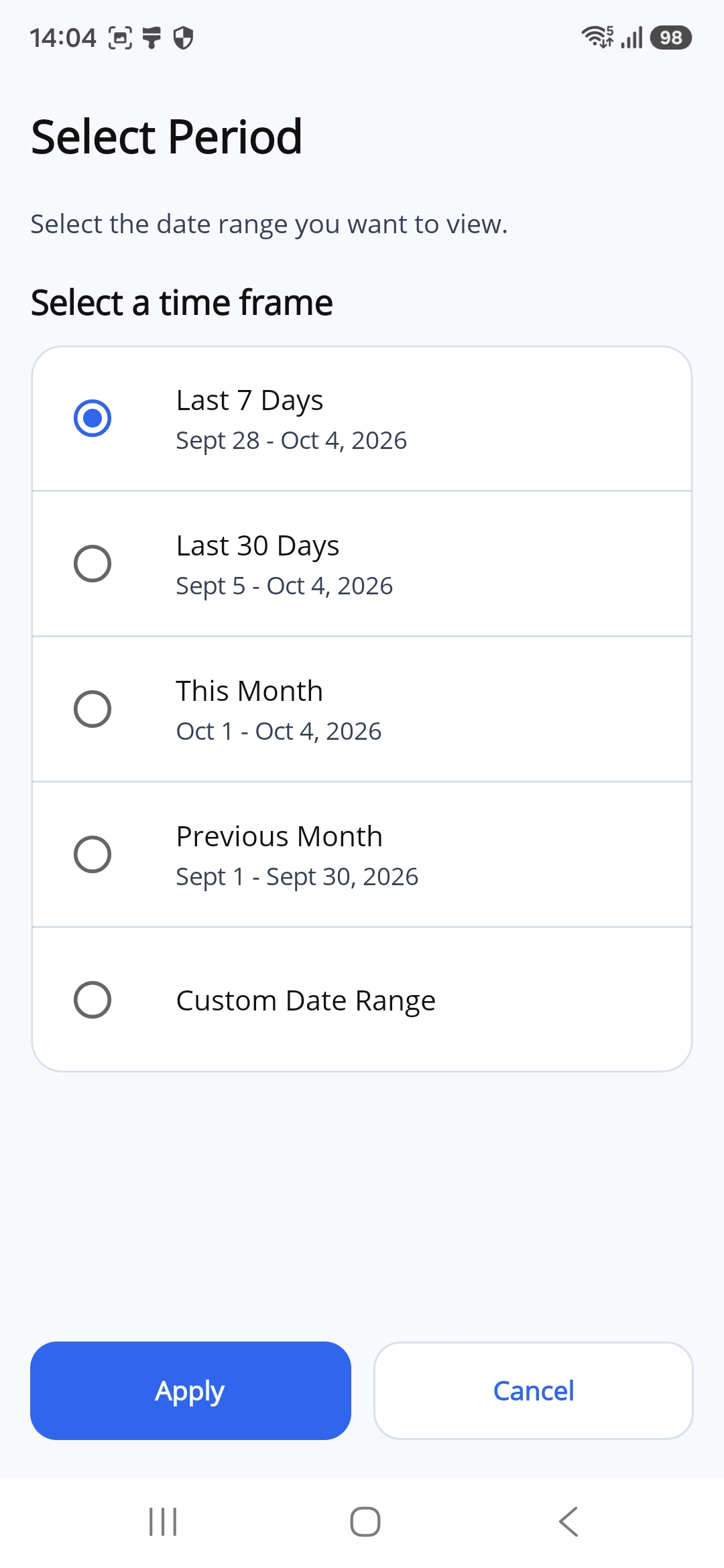
On the Select Period page, tap the period you want to view:
- Last 7 Days
- Last 30 Days
- This Month
- Previous Month
Then tap Apply. The Diary will show the selected period.
To Choose Your Own Dates
- Tap Custom Date Range.
- Scroll down to the From and To fields, if needed.
- Tap the date under From and choose the first day of your period.
- Tap the date under To and choose the last day of your period.
- Check both dates, then tap Apply.
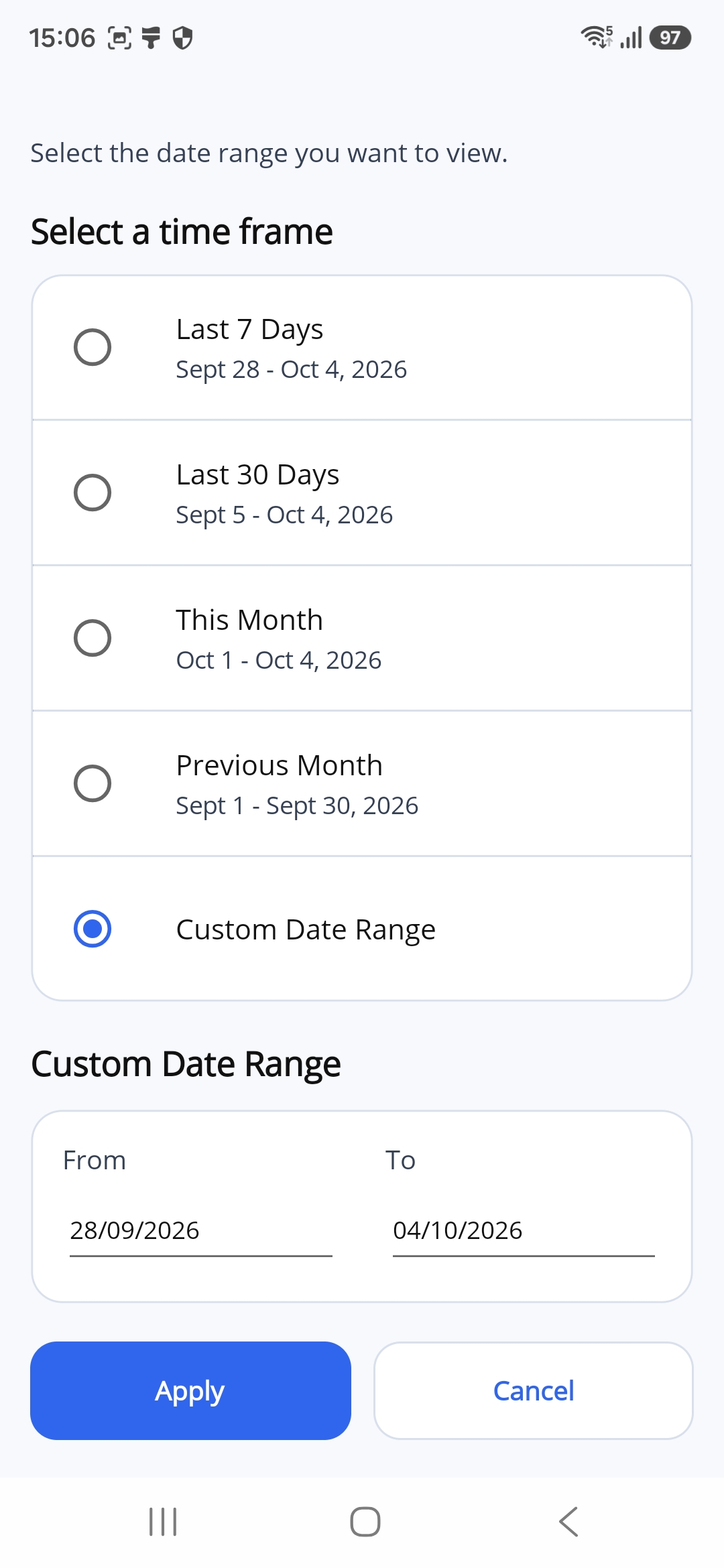
Tap Cancel if you want to return without changing the period.
Add a Diary Note
Step 1. Choose a Day
In My Diary, find the day you want to write about.
Tap Add diary note in that day's card.
Step 2. Check the Date
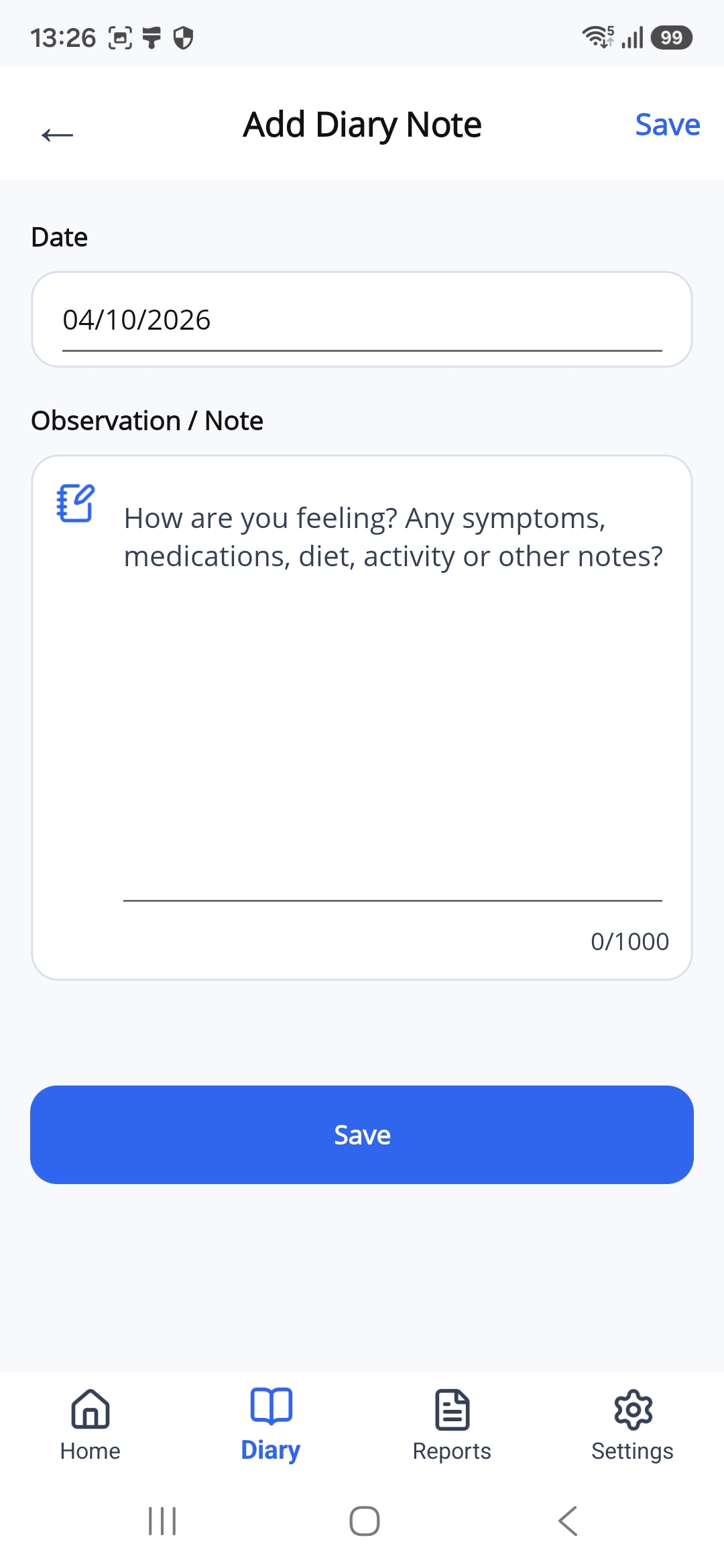
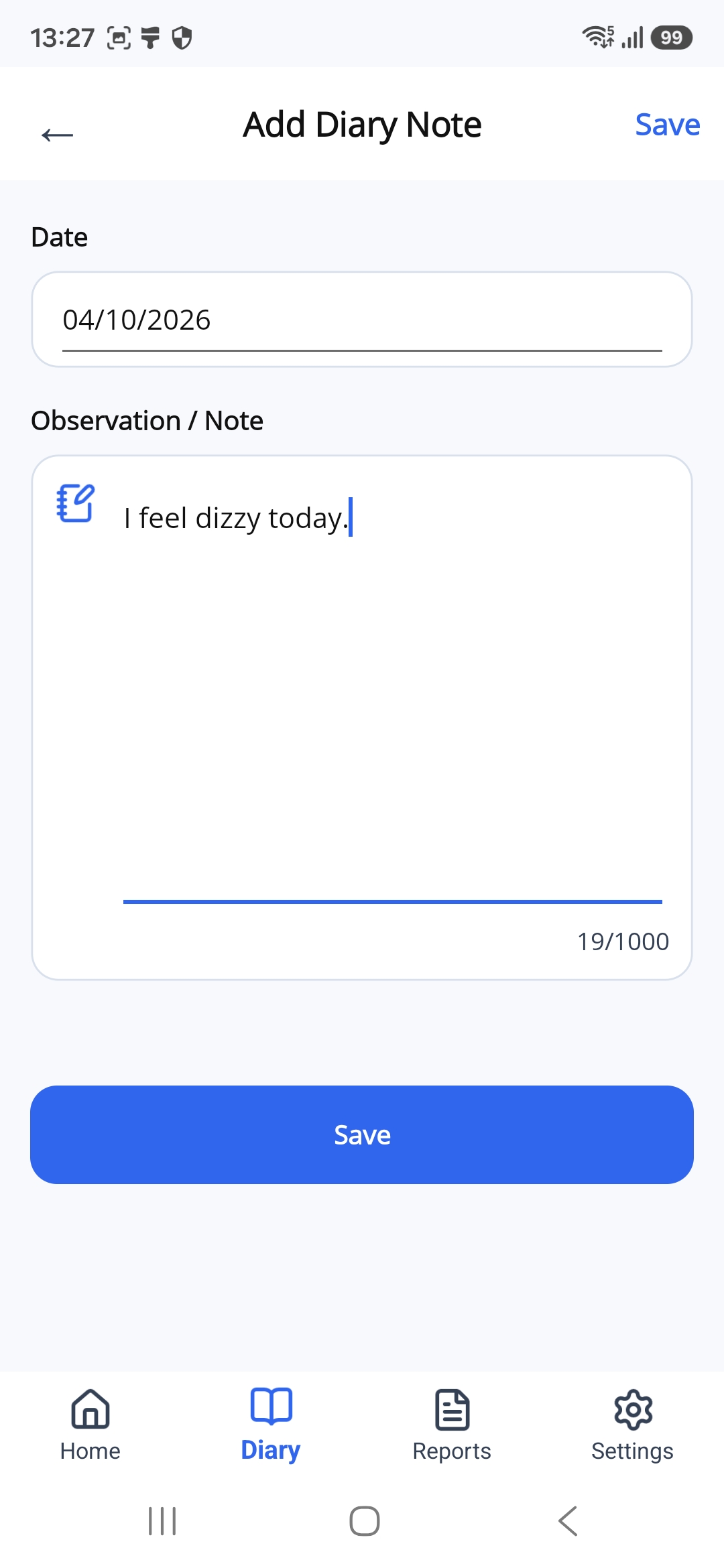
The Add Diary Note page will open. Check the Date at the top.
Step 3. Write Your Note
Tap the large box under Observation / Note. Write what you want to remember.
For example, you can describe how you feel or what you did that day.
The counter below the text shows how many characters you have used, out of 1,000. Spaces also count.
Step 4. Save Your Note
Tap the blue Save button below your note.
Your note will appear in that day's card on the My Diary page.
Read a Saved Note
- In My Diary, find the day with the note you want to read.
- Tap the arrow to the right of the note.
- Read the full note on the Note Details page.
Look under Linked Measurement to see the measurement values and time shown with the note.
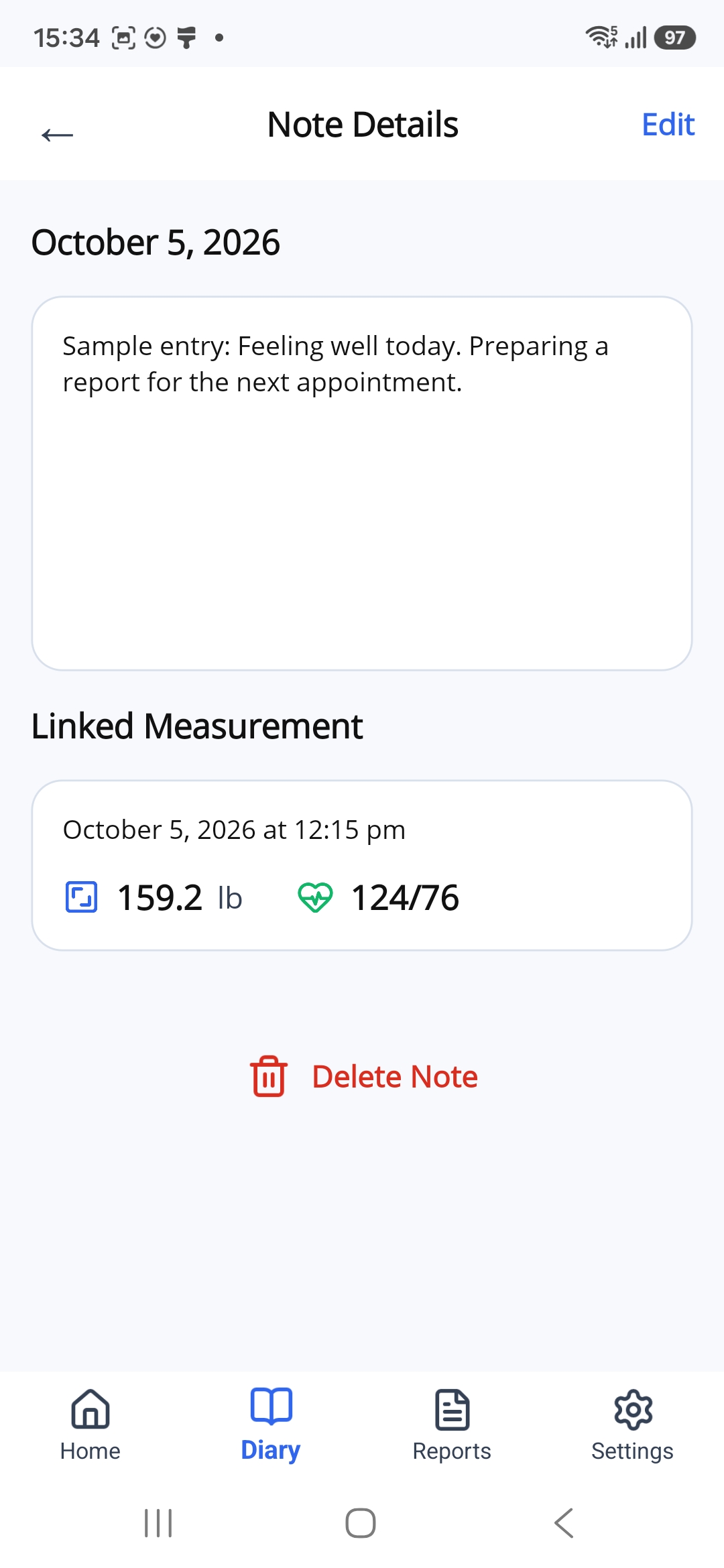
Tap the back arrow at the top left to return to the Diary.
Change a Note
- Open the note from My Diary.
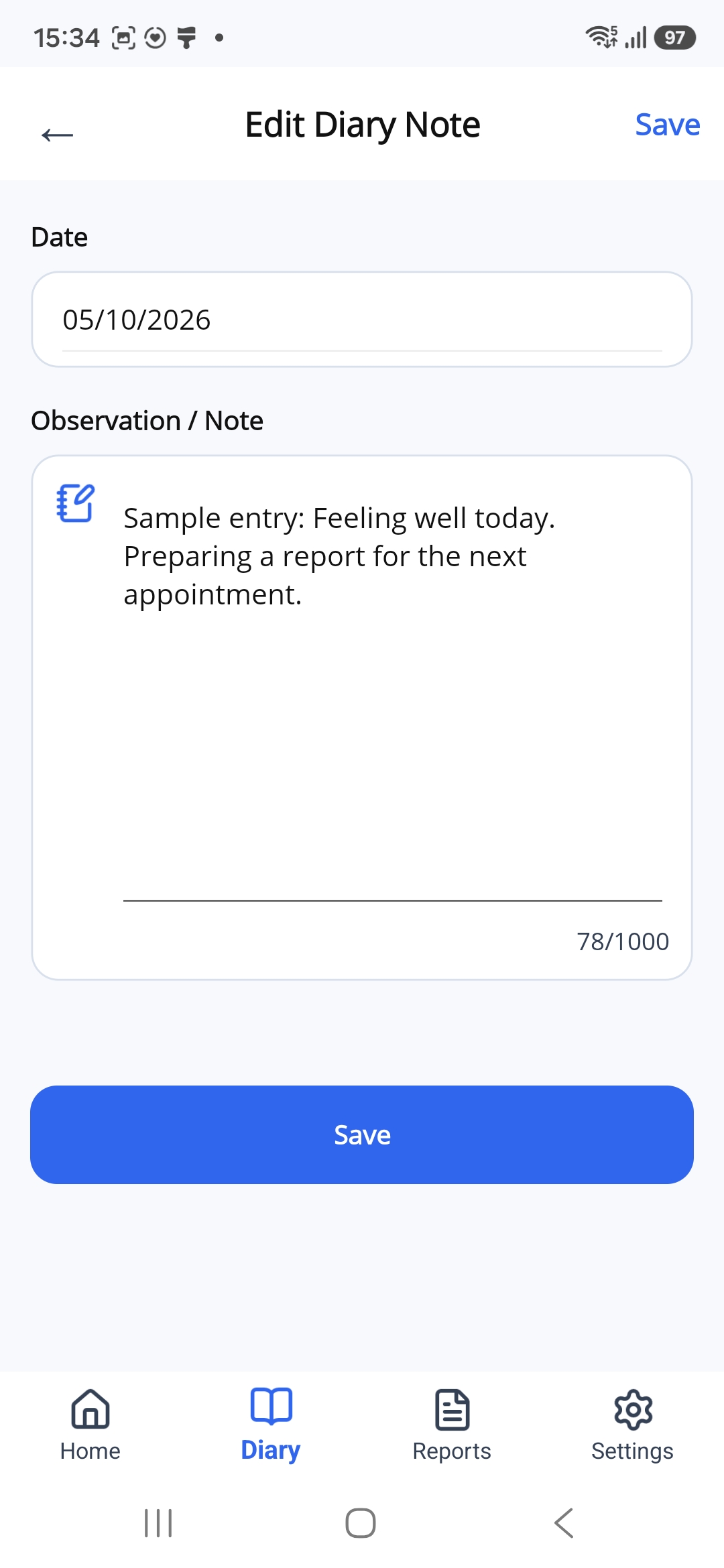
- On Note Details, tap Edit at the top right.
- Tap the text under Observation / Note and make your changes.
- Tap the blue Save button below the note to save your changes.
Delete a Note
Follow these steps when you want to remove a note.
- Open the note from My Diary.
- On Note Details, tap the red Delete Note button.
- A confirmation window will open. Tap Delete to remove the note.
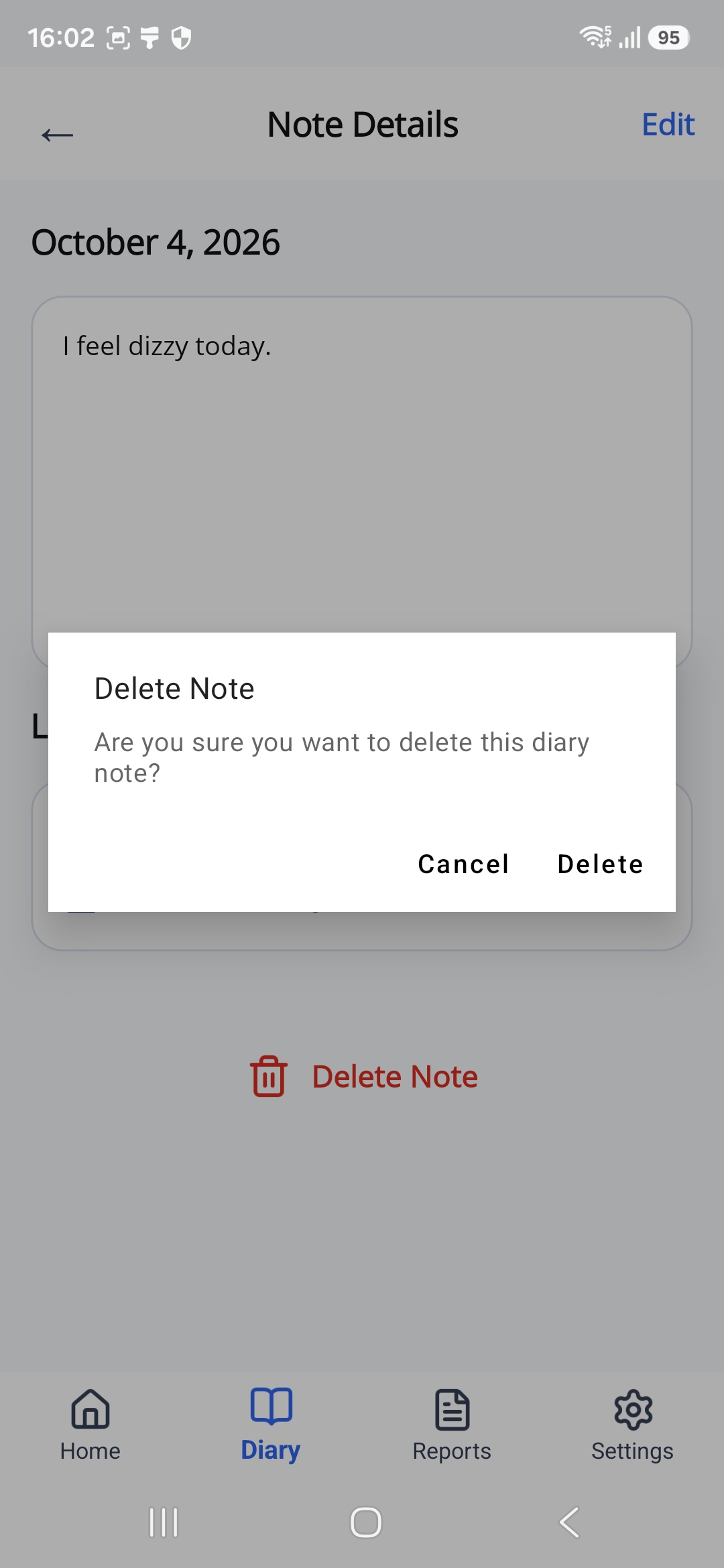
If you want to keep the note, tap Cancel.
What Comes Next?
Use Reports to create a PDF report with your measurements and diary notes.
The next section explains how to create and share a report.