
View Your Measurements
The Home page shows today's measurements and charts of your recent readings.
Measurements are received automatically from your connected Withings account.
Tap or click the picture to enlarge it. To close the picture, tap the × button or press Esc.
Step 1. Open Home
Tap Home at the bottom of the app.
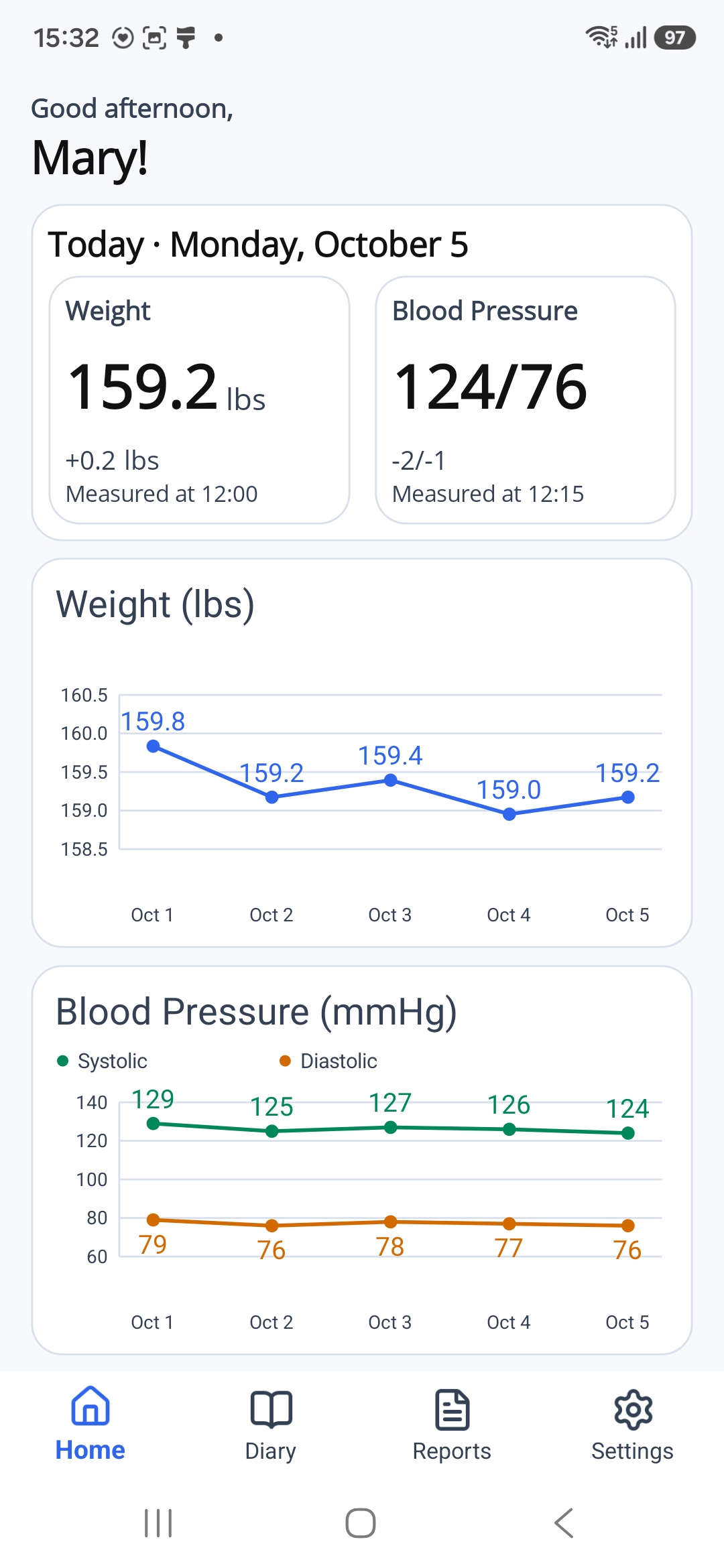
Step 2. Check Today's Measurements
Look at the section starting with Today and today's date.
It contains two boxes:
- Weight shows your latest weight measurement taken today.
- Blood Pressure shows your latest blood pressure measurement taken today. It is displayed as two numbers.
Measured at shows the time the measurement was taken. Weight and blood pressure may have different times.
Weight is shown in kilograms (kg) or pounds (lbs), depending on your settings.
To change your weight unit, open Settings, then Units.
Step 3. Read the Change Below Each Measurement
A number with a + or − sign shows the change from the previous measurement.
- + means the value increased.
- − means the value decreased.
In the example, +0.4 lbs means the weight is 0.4 pounds higher than the previous weight measurement.
For blood pressure, the changes are shown in the same order as the two reading numbers. In the example, +4/+7 means the first number increased by 4 and the second number increased by 7.
If there is no previous measurement to compare with, a change is not shown.
Step 4. Read the Weight Chart
Find the chart titled Weight.
The chart shows five calendar days at a time. When you open Home, it shows today and the four previous days.
Each blue point shows your latest weight measurement for that day. Read the weight beside the point and the date below it.
The blue line joins readings from consecutive days. If a day has no weight measurement, the line has a gap.
The chart uses the same weight unit as your measurement box above.
Step 5. Read the Blood Pressure Chart
Find the chart titled Blood Pressure (mmHg).
This chart has two lines:
- The green line, labelled Systolic, shows the first number in each blood pressure reading.
- The orange line, labelled Diastolic, shows the second number in each blood pressure reading.
Read the numbers beside the points. The dates are shown below the chart.
For each day, the points show your latest blood pressure measurement.
The lines join readings from consecutive days. If a day has no blood pressure measurement, both lines have a gap.
Step 6. View Earlier Measurements
Swipe left or right across a chart to view earlier readings or return to more recent days.
Each swipe moves the chart by five days.
The Weight and Blood Pressure charts scroll separately.
If You See Dashes
Dashes such as ---.- or --/-- mean that a measurement is not available for today.
Earlier measurements may still appear in the charts.
If you have taken a measurement today, check that it appears in the Withings app. It may take a little time to appear in CHF Companion.
If your measurements are still missing, check your connection in Settings → Connected Devices. See Connect Withings for the steps.
What Comes Next?
Use the Diary to write notes about how you feel.
The next section explains how to add, view, and change your notes.