
Create Your Account
Follow these steps to create your CHF Companion account.
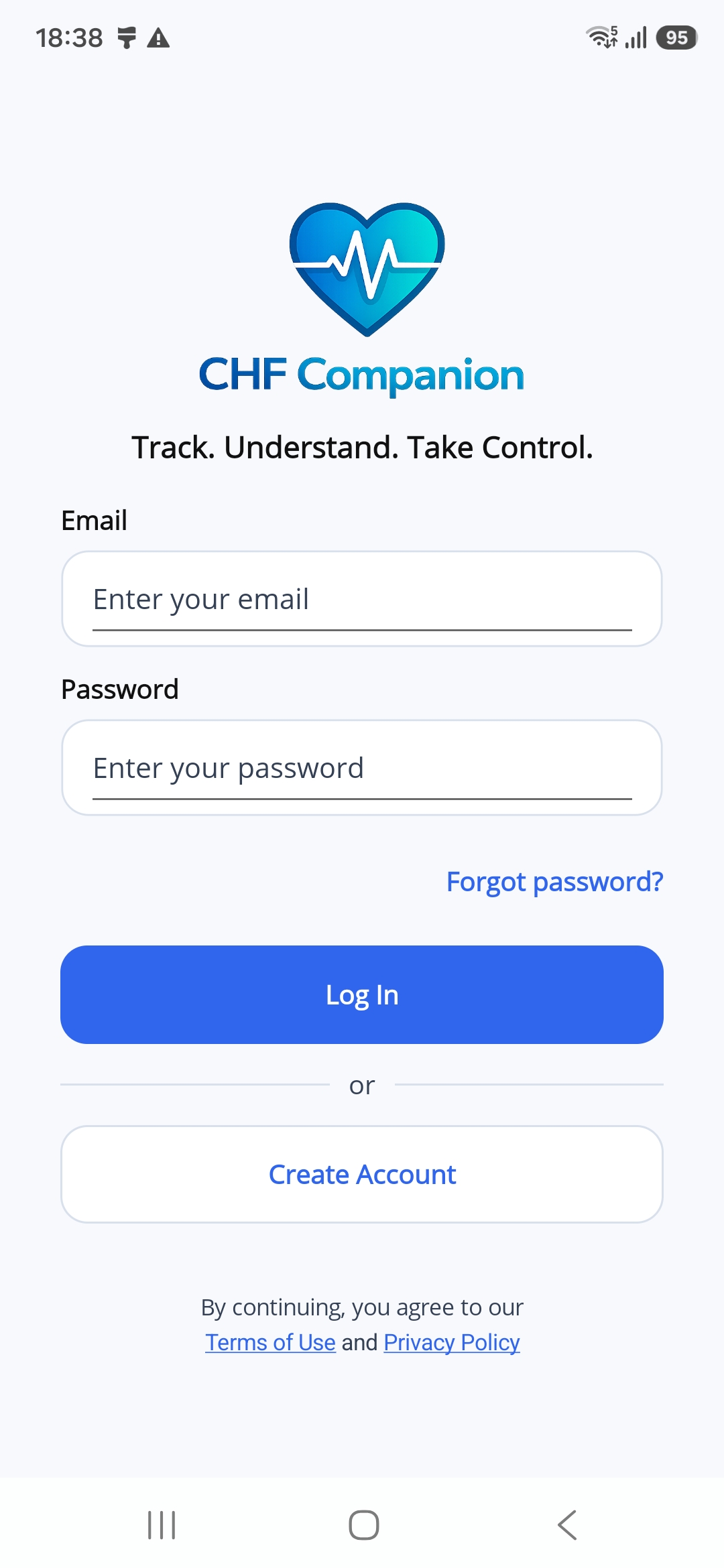
If you already have an account, enter your email and password on the app's login screen, then tap Log In.
Before You Start
Make sure your phone is connected to the internet. You will also need access to your email to receive a verification code.
Tap or click a picture to enlarge it. To close the picture, tap the × button or press Esc.
Step 1. Open Registration
Open CHF Companion on your phone.
On the login screen, tap Create Account.
Step 2. Enter Your Email
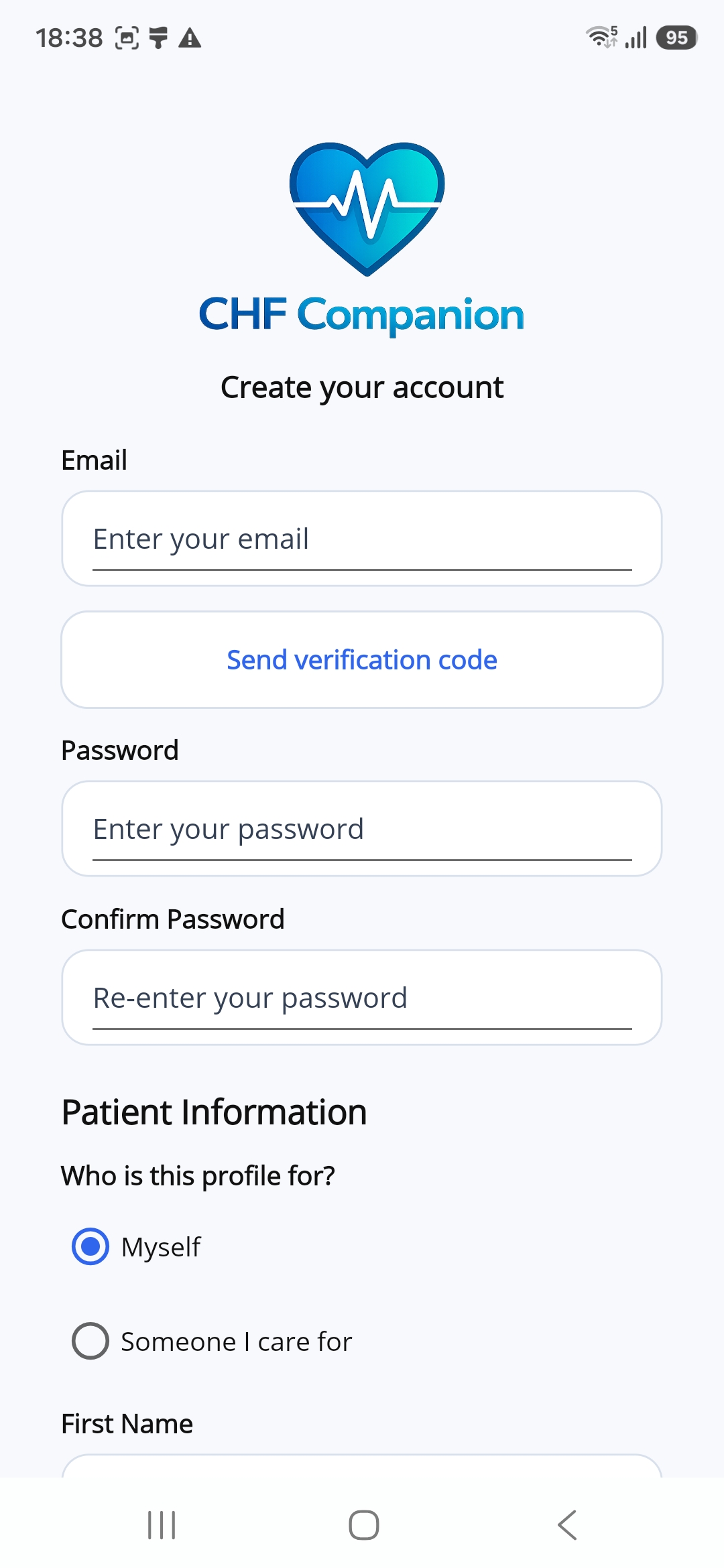
Tap the Email field and enter your email address.
Use an email address you can open to check your messages.
Step 3. Request Your Code
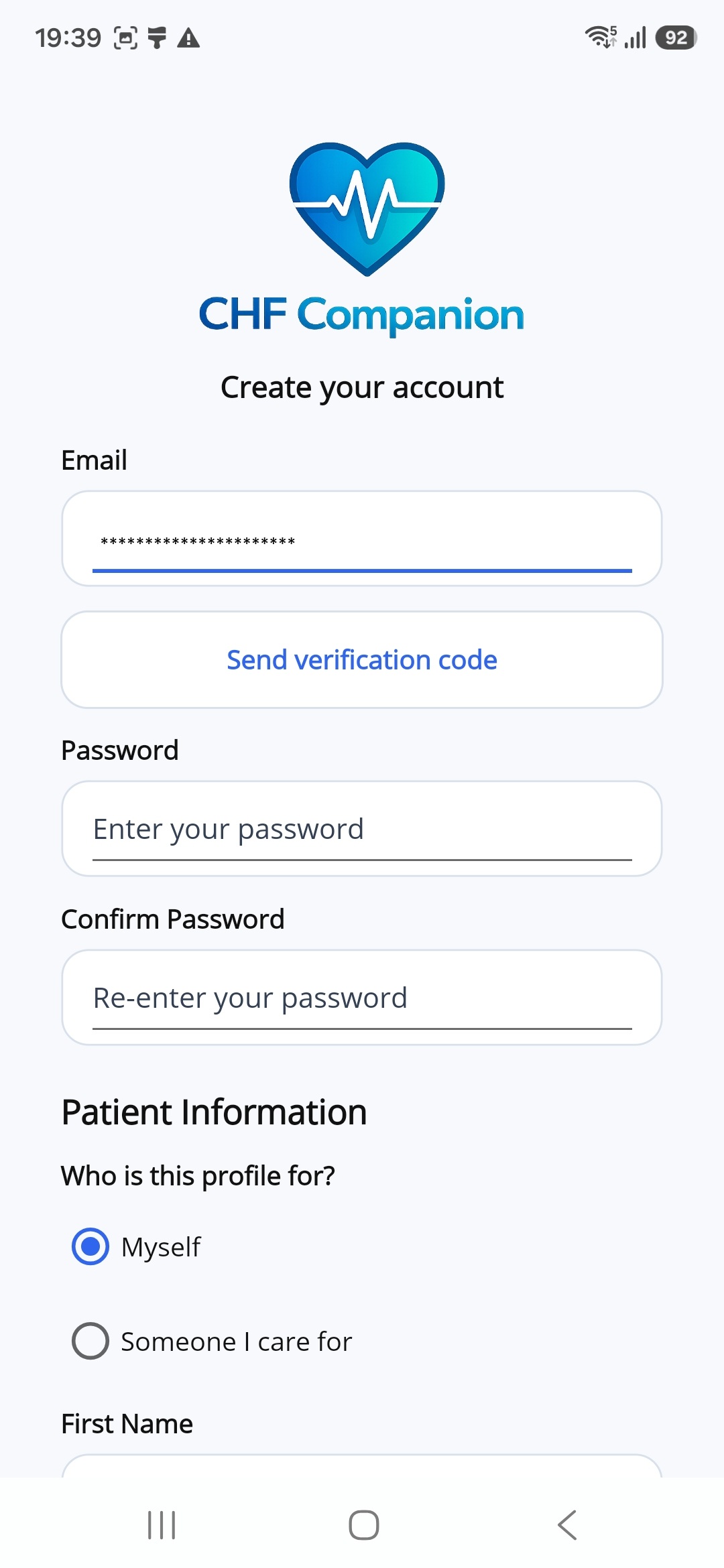
Check that your email address is correct.
Tap Send verification code.
Step 4. Enter Your Code and Password
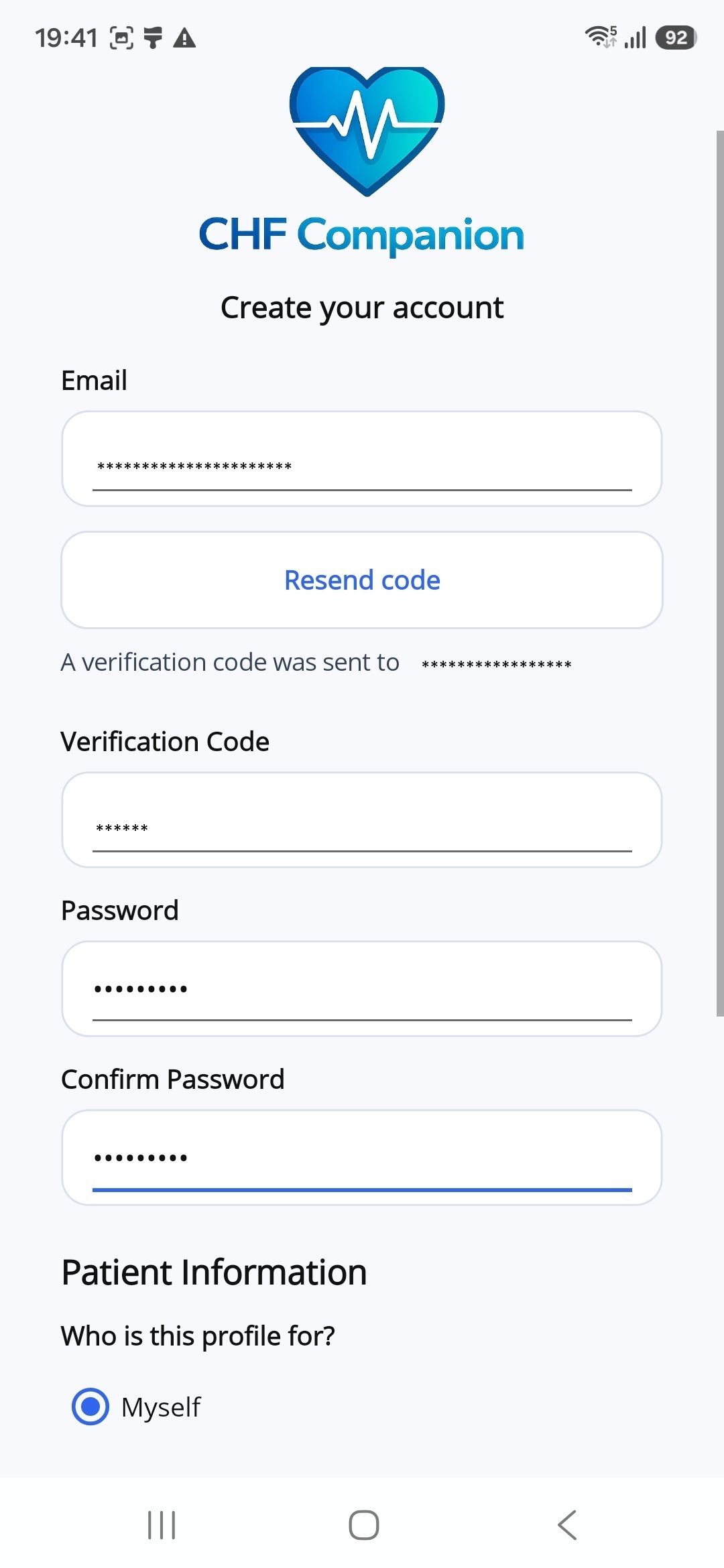
Open your email and find the message containing your verification code.
Return to CHF Companion.
Enter the code from your email in Verification Code.
Choose a password and enter it in Password. You will use this password to log in.
Enter the same password again in Confirm Password.
Step 5. Add Patient Information
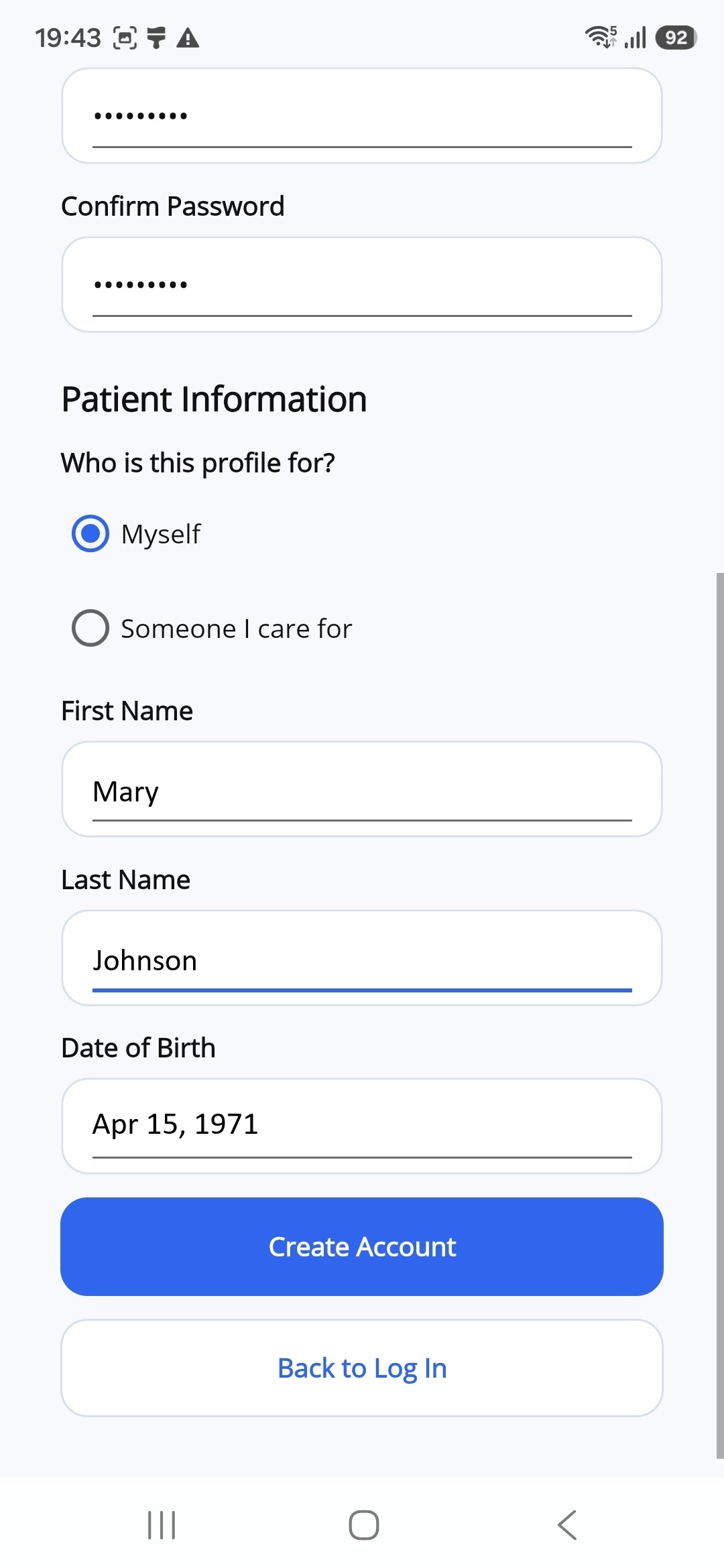
Scroll down to Patient Information.
Under Who is this profile for?, choose:
- Myself if you will track your own measurements.
- Someone I care for if you will track another person's measurements.
Enter the details of the person whose measurements you will track:
- Enter their first name in First Name.
- Enter their last name in Last Name.
- Tap Date of Birth and choose their date of birth.
Step 6. Create Your Account
Tap Create Account at the bottom of the form.
Wait while the app creates your account.
If the app returns to the login screen, enter your email and password, then tap Log In.
If You Need Help
If the verification email does not arrive, check your Spam or Junk folder. You can also return to the app and tap Resend code.
If your passwords do not match, enter the same password in Password and Confirm Password.
What Comes Next?
After your account is created, connect Withings to see your measurements in CHF Companion.